Process Data

Guide to processing billing data files for AIRNAV, PASC, Handling Agents, and Supplemental data

Process Data Overview

Overview

The Process Data section is a critical component of the JCAA Billing System that handles the import, validation, and processing of billing data from various sources. This section allows you to upload and process data files that will be used to generate invoices.

Main Data Types

  • AIRNAV Data: Air navigation service charges data from air traffic control services
  • PASC Data: Passenger Service Charge data collected by airports
  • Handling Agent Data: Ground handling service charge data from handling agents
  • Supplemental Data: Additional or corrected data for any of the above types

General Process Flow

  1. Select Billing Period: Choose the billing period for which you're processing data
  2. Upload Files: Upload data files (CSV, XLS, or XLSX format) to the system
  3. Process Data: System validates and processes the uploaded files
  4. Review Results: View processed data and check for any errors or unknown customers
  5. Move to Production: Once validated, move data to production for invoice generation

Permissions

Access to Process Data features is controlled by permissions:

  • Full Access (Y): Can upload, process, and view data files
  • View-Only (V): Can only view processed data files, cannot upload or process

File Formats Supported

  • CSV (Comma-Separated Values)
  • XLS (Microsoft Excel 97-2003)
  • XLSX (Microsoft Excel 2007+)

AIRNAV Data Overview

Overview

AIRNAV (Air Navigation) data processing handles air navigation service charges. This includes data from air traffic control services, navigation aids, and other air navigation infrastructure services provided by JCAA.

Features Available

  • Process AIRNAV Data Files: Upload and process AIRNAV data files (Full access required)
  • View AIRNAV Data Files: View previously processed AIRNAV data files (View or Full access)
  • Unknown Customers: View unknown customers from processed data (Full access required)

Data Source

AIRNAV data files are typically received from air traffic control systems and contain flight movement information including aircraft identifiers, flight dates, routes, boundary points, and other navigation service details.

Process AIRNAV Data Files

Overview

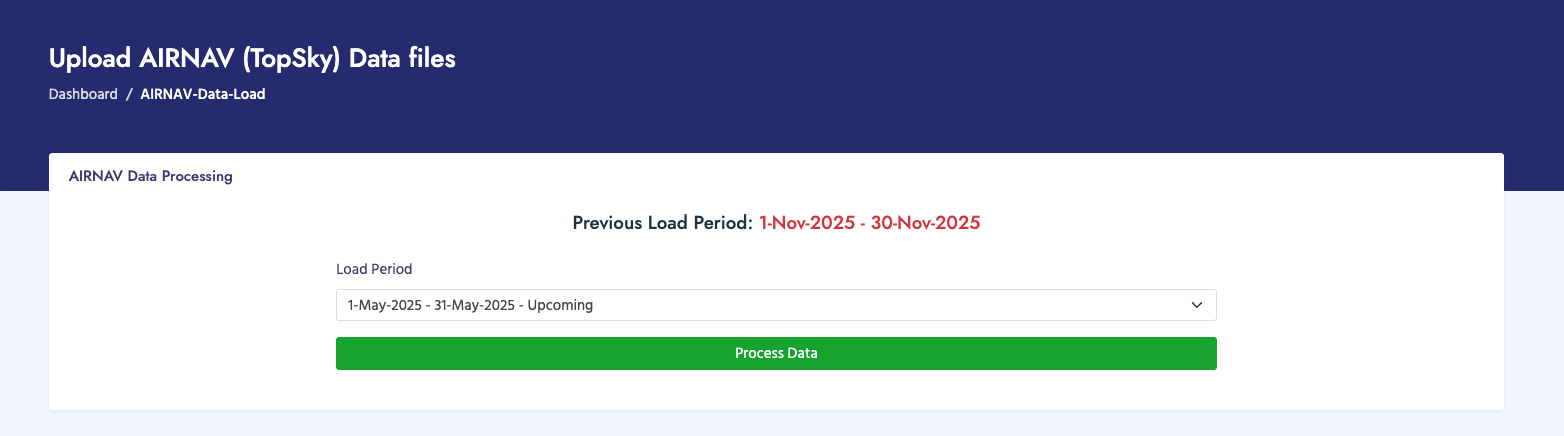
This feature allows you to process AIRNAV data files that have been placed in the system's source directory. The system reads files from the FTP directory, validates them, and loads the data into staging tables for review before moving to production.

How to Process AIRNAV Data Files

  1. Navigate to Billing Process → Process Data → AIRNAV Data → Process AIRNAV Data Files
  2. Select the Billing Period from the dropdown menu
  3. Alternatively, you can specify a Start Date and End Date manually
  4. Ensure that AIRNAV data files have been placed in the source directory for the selected period
  5. Click Process Data or Submit to begin processing
  6. Wait for the processing to complete - a progress bar will show the status
  7. Review the results message for success or error information

Processing Steps

When you process AIRNAV data files, the system:

  1. Validates Billing Period: Checks that the selected billing period exists and is valid
  2. Discards Existing Batches: Removes any existing batch records for the same period and load type
  3. Creates New Batch Master: Creates a new batch record to track this processing session
  4. Scans Source Directory: Finds all files in the source directory for the period
  5. Processes Each File
  6. Updates Batch Status: Marks the batch as processed with success/error counts

File Requirements

  • Files must be in CSV, XLS, or XLSX format
  • Files should contain flight data with required columns including:
    • Flight Type
    • Aircraft Identifier
    • Flight Date
    • Registration
    • Flight Rules
    • Type Schedule
    • Aircraft Type
    • Wake Turbulence
    • Secondary Surveillance Radar Code
    • Destination
    • Arrival Time
    • Departure
    • Departure Time
    • Boundary Points (Outside Region, Within Region, Entry, Exit)

Data Processing Details

During processing:

  • Each file is processed individually
  • Invalid records are logged but don't stop the process

Important Notes

  • Processing AIRNAV data will create a new batch for the selected billing period
  • If a batch already exists for the period, it will be discarded and recreated
  • Always verify the processed data before moving it to production
  • Check for unknown customers and aircraft before invoice generation
  • Files must be placed in the source directory before processing (not uploaded through the web interface)

Error Handling

If errors occur during processing:

  • Error files are logged in the response
  • Successful files are still processed
  • Batch status may be marked as "partial" if some files fail
  • Review error messages to identify and fix issues
Process AIRNAV Data Files

View AIRNAV Data Files

Overview

The View AIRNAV Data Files page displays a list of all processed AIRNAV data batches, allowing you to review processing history, file details, and data status.

How to View Processed AIRNAV Files

  1. Navigate to Billing Process → Process Data → AIRNAV Data → View AIRNAV Data Files
  2. The page displays a list of all processed AIRNAV data batches
  3. You can view details such as:
    • Batch ID and processing date
    • Number of files processed
    • Billing period
    • Status (initial, processed, etc.)
    • Start and end dates
    • Created by user information
  4. Click on a batch to view detailed information including:
    • Individual file details
    • Record counts per file
    • Processing status for each file
    • Any errors encountered

What You Can Do

  • Review processing history for different billing periods
  • Verify that files were processed successfully
  • Check file counts and record counts
  • Identify any processing errors
  • Track which user processed each batch

Batch Information Displayed

  • Batch ID: Unique identifier for the batch
  • Load Type: "AIRNAV"
  • Period ID: The billing period this batch belongs to
  • Start Date / End Date: Date range for the data
  • Number of Files: Total files processed in this batch
  • Status: Current status of the batch (initial, processed, etc.)
  • Created Date: When the batch was created
  • Created By: User who processed the batch

Unknown Customers Report

Overview

The Unknown Customers report shows customers that were found in the processed AIRNAV data but don't exist in the customer database. This helps you identify customers that need to be added to the system before generating invoices.

How to View Unknown Customers

  1. Navigate to Billing Process → Process Data → AIRNAV Data → This month unknown customers
  2. The page displays a list of unknown customers from the current month's processed data
  3. Review the list to identify customers that need to be added to the system
  4. Use this information to update the customer database before generating invoices

What Information is Displayed

The report typically shows:

  • Customer identifiers found in the data (e.g., Aircraft Identifier, Registration)
  • Flight information associated with the unknown customer
  • Frequency of occurrence (how many times this customer appears)
  • Date range of occurrences

How to Use This Report

  1. Review the list of unknown customers
  2. Identify which customers need to be added to the system
  3. Navigate to Customer Management to add new customers
  4. Verify that all customers are now recognized before generating invoices

Important Notes

  • Unknown customers must be added before invoice generation
  • Invoices cannot be generated for unknown customers
  • Regularly check this report after processing new data

PASC Data Overview

Overview

PASC (Passenger Service Charge) data processing handles passenger service charges collected by airports. This data comes from airports and includes information about passenger movements and associated charges.

Features Available

  • Upload PASC Data Files: Upload PASC data files to the system (Full access required)
  • Process PASC Data Files: Process uploaded PASC data files (Full access required)
  • View PASC Data Files: View previously processed PASC data files (View or Full access)

PASC Data Processing Workflow

PASC data processing is a two-step process:

  1. Step 1 - Upload Files: Upload PASC data files
  2. Step 2 - Process Files: Process the uploaded files to validate and import the data

Data Source

PASC data files are received from airports and contain passenger movement information including flight details, passenger counts (international, domestic, infants), and airport information.

Upload PASC Data Files

Overview

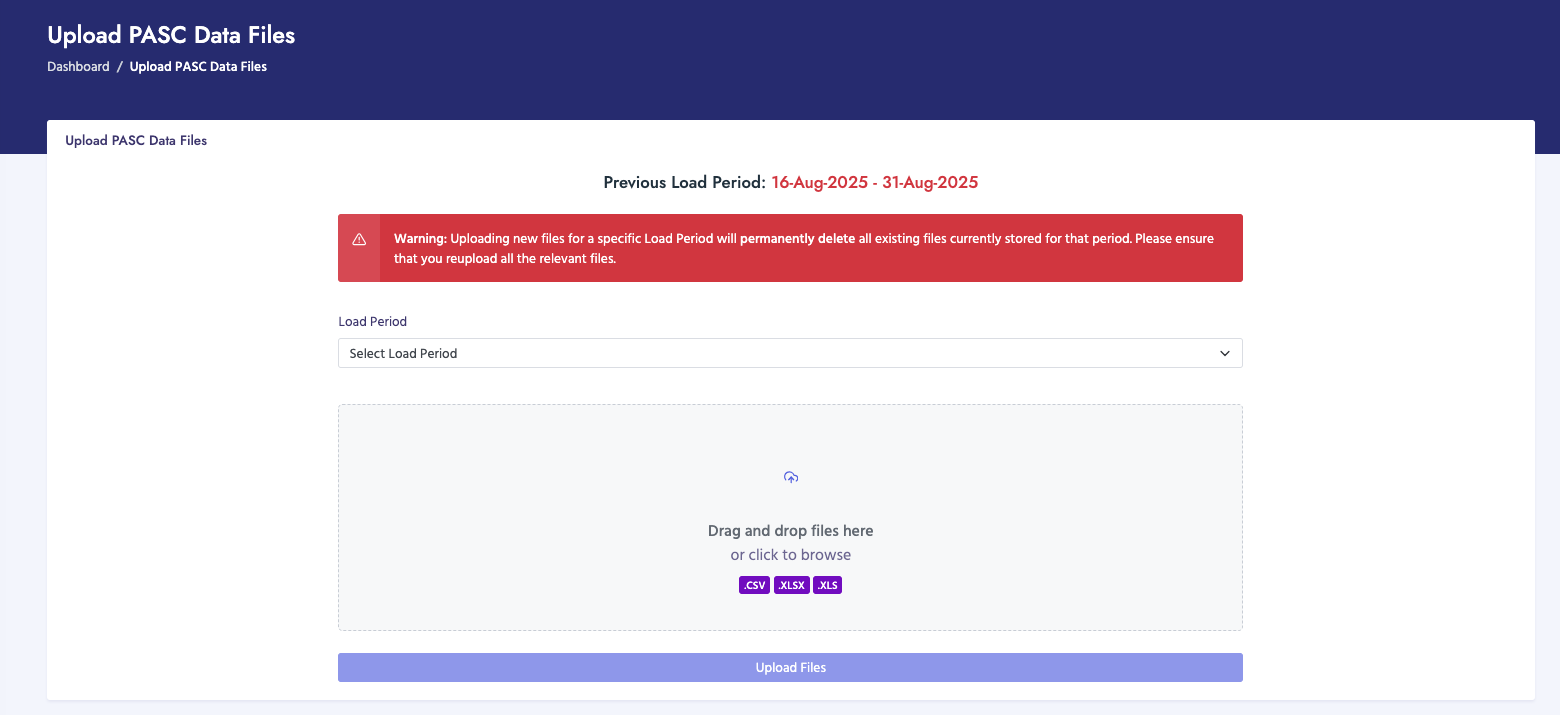
This feature allows you to upload PASC data files directly through the web interface. Files are uploaded to the FTP directory for the selected billing period, where they can then be processed.

How to Upload PASC Data Files

  1. Navigate to Billing Process → Process Data → PASC Data → Upload PASC Data Files
  2. Select the Billing Period from the dropdown menu
  3. Click Choose Files or use the file input to select your PASC data files
  4. You can select multiple files at once
  5. For each file, select the corresponding Airport from the dropdown menu
  6. Review the file list to ensure all files have airports assigned
  7. Click Upload Files to upload the files to the system
  8. Wait for the upload to complete - a progress bar will show the status
  9. Files are uploaded to the FTP directory for the selected billing period

File Requirements

  • Files must be in CSV, XLS, or XLSX format
  • Each file must have an airport assigned before uploading
  • File names can optionally start with a 3-character IATA prefix (e.g., "JFK_data.xlsx")
  • If no IATA prefix is in the filename, the selected airport code will be used
  • Files should contain passenger service charge data with required columns

Airport Assignment

  • Each file must be assigned to an airport before uploading
  • The airport code is used as a prefix for the filename
  • This helps identify which airport the data belongs to during processing
  • If a file already has an IATA prefix, it may be preserved or replaced based on system configuration

Important Notes

  • All existing files in the upload directory will be deleted when you upload new files
  • Ensure you have selected the correct billing period before uploading
  • Make sure all files have airports assigned before clicking Upload
  • After uploading, proceed to "Process PASC Data Files" to import the data
Upload PASC Data Files

Process PASC Data Files

Overview

This feature processes PASC data files that have been uploaded to the FTP directory. The system reads files from the directory, extracts airport information, validates the data, and loads it into staging tables.

How to Process PASC Data Files

  1. Navigate to Billing Process → Process Data → PASC Data → Process PASC Data Files
  2. Select the Billing Period from the dropdown menu
  3. The system will automatically detect files in the FTP directory for that period
  4. Click Process Data or Submit to begin processing
  5. A progress bar will show the processing status
  6. Wait for processing to complete
  7. Review the results message for success or error information

Processing Steps

When you process PASC data files, the system:

  1. Validates Billing Period: Checks that the selected billing period exists
  2. Discards Existing Batches: Removes any existing batch records for the same period
  3. Creates New Batch Master: Creates a new batch record
  4. Scans Directory: Finds all uploaded files
  5. Processes Each File:
    • Extracts IATA prefix from filename (first 3 characters)
    • Copies file to the docs directory
    • Creates a batch detail record
    • Reads and parses the file (CSV or Excel)
    • Validates data format and required columns
    • Associates data with the airport (via IATA prefix)
    • Inserts valid records into staging tables
  6. Updates Batch Status: Marks batch as processed with file and record counts

IATA Prefix Extraction

The system automatically extracts the IATA airport code from filenames:

  • Takes the first 3 characters of the filename
  • Converts to uppercase
  • Uses this to identify which airport the data belongs to
  • Example: "JFK_data.xlsx" → IATA prefix: "JFK"

File Requirements

  • Files must be in CSV, XLS, or XLSX format
  • File names should start with a 3-character IATA prefix (e.g., "JFK_data.xlsx")
  • Files should contain passenger service charge data with required columns including:
    • Flight information (date, number, etc.)
    • Passenger counts (international, domestic, infants)
    • Aircraft information
    • Route information (origin, destination)
  • Files must be in the FTP directory for the selected billing period

Data Processing Details

During processing:

  • Each file is processed individually
  • Data is associated with the airport via IATA prefix

Important Notes

  • PASC data processing requires files to be uploaded first (Step 1)
  • The system automatically extracts IATA codes from filenames - ensure filenames are correctly formatted
  • Processing creates a new batch and may discard existing batches for the same period
  • Data is validated during processing - check for errors before moving to production
  • Always verify processed data matches expected passenger counts and charges
  • Files are read from the FTP directory, not uploaded during processing

Error Handling

If errors occur:

  • Files with errors are logged but don't stop processing of other files
  • Review error messages to identify issues
  • Fix file issues and reprocess if necessary

View PASC Data Files

Overview

The View PASC Data Files page displays a list of all processed PASC data batches, allowing you to review processing history, file details, and data status.

How to View Processed PASC Files

  1. Navigate to Billing Process → Process Data → PASC Data → View PASC Data Files
  2. The page displays a list of all processed PASC data batches
  3. You can view details such as:
    • Batch ID and processing date
    • Number of files processed
    • Billing period
    • Status
    • Airport/IATA prefix information
    • Start and end dates
  4. Click on a batch to view detailed information including:
    • Individual file details with IATA prefixes
    • Record counts per file
    • Processing status for each file
    • Airport associations

What You Can Do

  • Review processing history for different billing periods
  • Verify that files were processed successfully
  • Check which airports the data belongs to
  • Verify IATA prefix extraction was correct
  • Identify any processing errors

Handling Agent Data Overview

Overview

Handling Agent data processing handles ground handling service charges. This data comes from handling agents who provide ground services to aircraft at airports, including baggage handling, fueling, catering, and other ground support services.

Features Available

  • Process Handling Agent Data Files: Upload and process handling agent data files (Full access required)
  • View Handling Agent Data Files: View previously processed handling agent data files (View or Full access)

Data Source

Handling Agent data files are received from ground handling service providers and contain information about services provided to aircraft, including flight details, service types, and associated charges.

Process Handling Agent Data Files

Overview

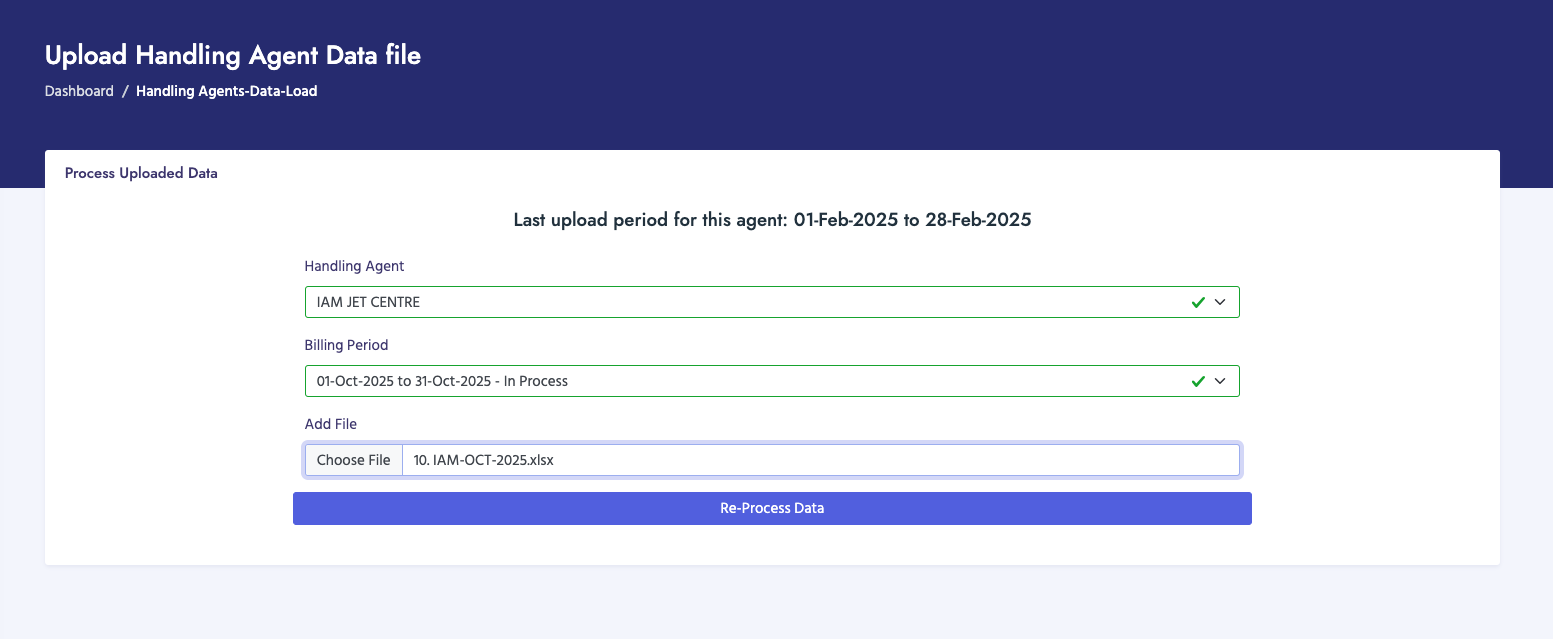
This feature allows you to upload and process handling agent data files. Unlike AIRNAV and PASC, handling agent data requires you to specify which handling agent the data belongs to during the upload process.

How to Process Handling Agent Data Files

  1. Navigate to Billing Process → Process Data → Handling Agent Data → Process Handling Agent Data Files
  2. Select the Handling Agent from the dropdown menu (required)
  3. Select the Billing Period from the dropdown menu (required)
  4. Click Choose File or Browse to select your data file
  5. Supported file formats: CSV, XLS, XLSX
  6. Note: Typically one file is processed at a time for handling agent data
  7. Click Process Data to begin processing
  8. A progress indicator will show the processing status
  9. Wait for processing to complete
  10. Review the results message - if successful, you'll see a link to view the processed data

File Requirements

  • Files must be in CSV, XLS, or XLSX format
  • Files must contain the following required columns:
    • Column A: [First required field]
    • Column B: [Second required field]
    • Column C: [Third required field]
    • Column D: [Fourth required field]
    • Column F: [Fifth required field]
    • Column G: [Sixth required field]
    • Column J: [Seventh required field]
    • Column K: [Eighth required field]
    • Column L: [Ninth required field]
    • Column M: [Tenth required field]
  • Data should start from row 5 (rows 1-4 are typically headers or metadata)
  • File should contain flight and service data for the selected handling agent

Processing Steps

When you process handling agent data files, the system:

  1. Validates Input: Checks that handling agent and billing period are selected
  2. Validates File: Checks file format and required columns
  3. Updates Billing Period: Sets period status to "in process"
  4. Creates Batch Master: Creates a new batch record for this processing session
  5. Uploads File: Saves the file to the docs directory
  6. Processes File:
    • Reads the file (CSV or Excel format)
    • Skips header rows (rows 1-4)
    • Validates each record
    • Checks for duplicate records
    • Marks duplicates for review
    • Inserts valid records into staging tables
    • Associates data with the selected handling agent
  7. Updates Batch Status: Marks batch as processed

Duplicate Detection

The system automatically detects duplicate records based on:

  • Period ID
  • Vendor Airport ID
  • Handling Agent ID
  • Airport
  • Operator Name
  • Flight Date
  • Aircraft Registration
  • Origin and Destination

Duplicate records are marked but don't prevent processing. Review them before moving to production.

Data Processing Details

During processing:

  • Each record is validated against required columns
  • Records are checked for duplicates
  • Data is associated with the selected handling agent

Important Notes

  • You must select a handling agent before processing - the system needs to know which agent the data belongs to
  • Processing creates a new batch for the selected billing period and handling agent
  • Duplicate records are automatically detected and marked - review them before moving to production
  • Data is validated during processing - ensure all required columns are present and properly formatted
  • After successful processing, you can view the data details to verify accuracy
  • Always verify the processed data matches the source file before proceeding to invoice generation
  • Files are uploaded through the web interface (unlike AIRNAV which reads from FTP directory)
Process Handling Agent Data Files

View Handling Agent Data Files

Overview

The View Handling Agent Data Files page displays a list of all processed handling agent data batches, allowing you to review processing history, file details, and data status.

How to View Processed Handling Agent Files

  1. Navigate to Billing Process → Process Data → Handling Agent Data → View Handling Agent Data Files
  2. The page displays a list of all processed handling agent data batches
  3. You can filter or search by:
    • Handling Agent
    • Billing Period
    • Processing Date
    • Status
  4. Click on a batch to view detailed information including:
    • File details
    • Number of records processed
    • Any errors or warnings
    • Duplicate records (if any)
    • Handling agent information

What You Can Do

  • Review processing history for different handling agents and billing periods
  • Verify that files were processed successfully
  • Check record counts and data quality
  • Review duplicate records
  • Identify any processing errors
  • Track which user processed each batch

Batch Information Displayed

  • Batch ID: Unique identifier for the batch
  • Load Type: "Handling Agent"
  • Handling Agent: The handling agent this batch belongs to
  • Period ID: The billing period
  • File Information: File name and location
  • Record Count: Number of records processed
  • Status: Current status of the batch
  • Created Date: When the batch was processed