Credit Notes

Guide to creating, applying, and managing credit notes for customer accounts

Credit Notes Overview

Overview

Credit Notes allow you to issue credits to customer accounts that can be applied to invoices. This is useful for refunds, adjustments, corrections, or other situations where you need to credit a customer's account.

Credit Note Workflow

  1. Create Credit Note: Issue a credit note to a customer account
  2. Apply Credit Note: Apply the credit note balance to one or more invoices
  3. View Credit Notes: View all credit notes and their status

Credit Note Features

  • Credit notes have a balance that can be applied to invoices
  • Credits can be applied to multiple invoices
  • Credit notes track all transactions (increases, applications, refunds)
  • Credit balances are maintained until fully applied or refunded

Permissions

Credit Note access is controlled by permissions:

  • Credit Notes (Full Access - Y): Can create, apply, and view credit notes
  • Credit Notes (View-Only - V): Can only view credit notes

Credit Note Statuses

  • Pending: Credit note has been created but not yet applied
  • Partially Applied: Some of the credit has been applied to invoices
  • Fully Applied: All credit has been applied to invoices
  • Refunded: Credit has been refunded to the customer
Create Credit Note

Overview

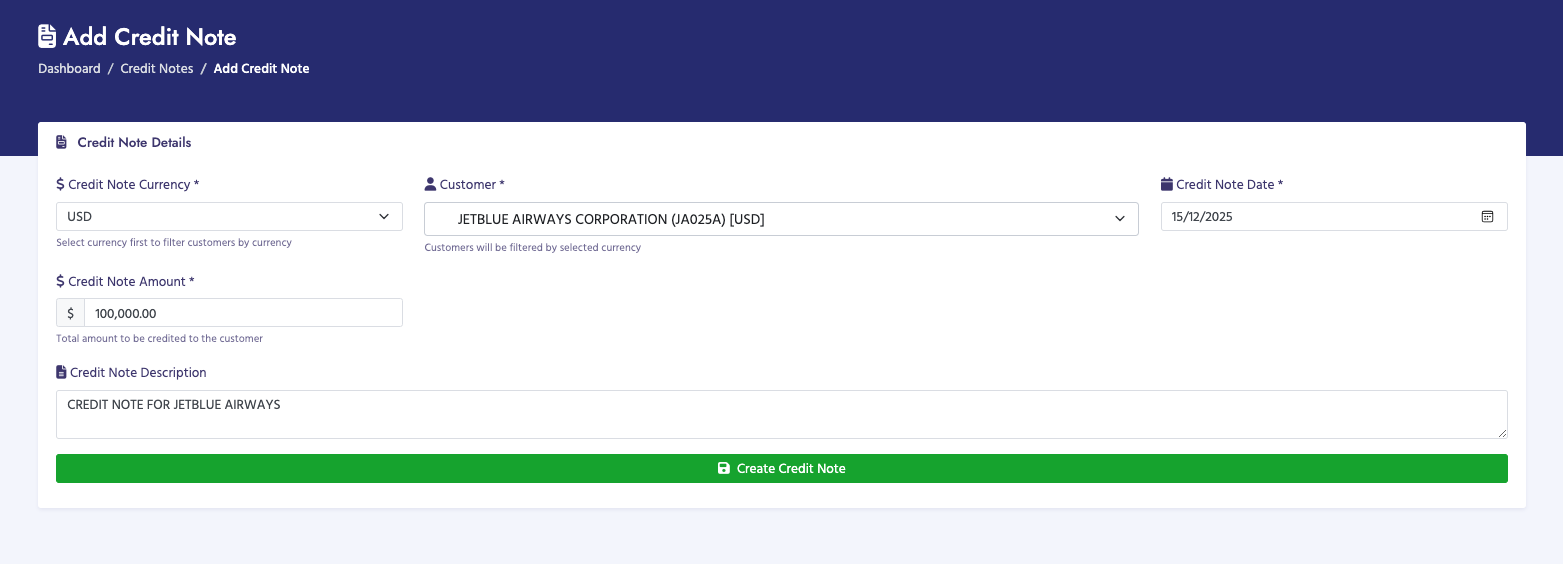
The Create Credit Note page allows you to issue a credit to a customer account. The credit can later be applied to invoices to reduce the amount owed.

How to Create a Credit Note

  1. Navigate to Credit Notes → Create Credit Note
  2. Select the Credit Note Currency (USD or JMD):
    • This determines which customers are available
    • Customers are filtered by their payment currency
  3. Select the Customer from the dropdown:
    • Only customers matching the selected currency are shown
    • Uses Select2 for enhanced search
  4. Enter the Credit Note Date (defaults to today)
  5. Enter the Credit Note Amount:
    • Total amount to be credited to the customer
    • Must be greater than 0
    • Currency symbol matches selected currency
  6. Optionally enter a Credit Note Description:
    • Reason for the credit (refund, adjustment, correction, etc.)
    • Helps track why the credit was issued
  7. Click Create Credit Note to save

Credit Note Fields

  • Credit Note Currency (Required):
    • USD or JMD
    • Must be selected first to filter customers
    • Determines which customers are available
  • Customer (Required):
    • Filtered by selected currency
    • Only customers with matching payment currency are shown
  • Credit Note Date (Required):
    • Date the credit note is issued
    • Defaults to current date
  • Credit Note Amount (Required):
    • Total credit amount
    • Must be greater than 0
    • This becomes the initial credit balance
  • Credit Note Description (Optional):
    • Text description of why the credit is being issued
    • Examples: "Refund for overpayment", "Adjustment for billing error", etc.

Credit Note Creation Process

When you create a credit note:

  1. A credit note master record is created
  2. A credit note number is automatically generated
  3. An initial "increase" transaction is recorded
  4. The credit balance is set to the credit amount
  5. The credit note status is set to "Pending"
  6. An audit log entry is created

Important Notes

  • You must select currency first before selecting a customer
  • Customers are filtered by payment currency
  • Credit notes can be created in USD or JMD
  • The credit balance starts equal to the credit amount
  • Credit notes can be applied to invoices later
  • Credit notes can be partially applied to multiple invoices
  • Unused credit balance remains available until applied or refunded
Create Credit Note

Apply Credit Notes

Overview

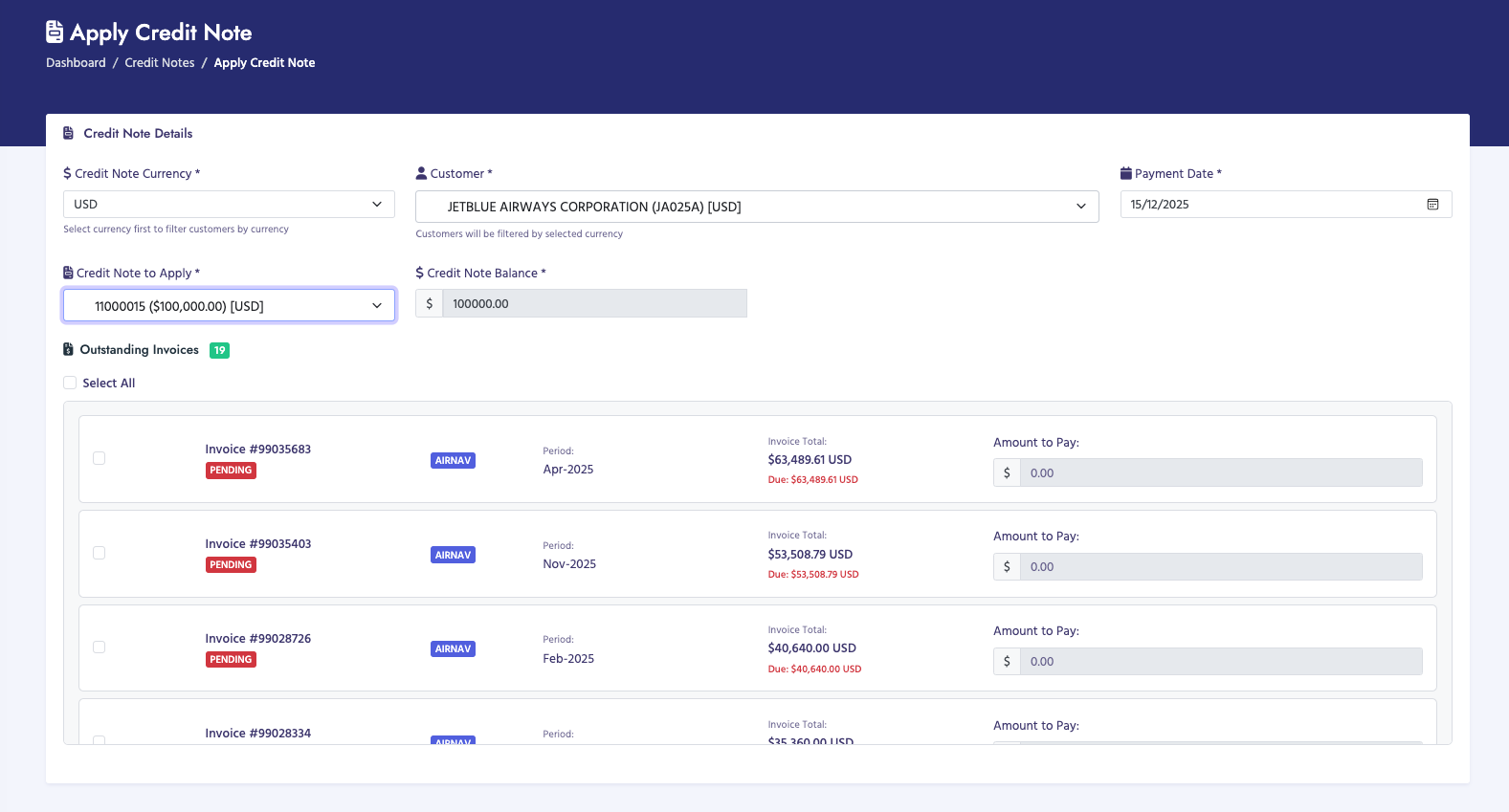
The Apply Credit Notes page allows you to apply credit note balances to customer invoices. You can apply a credit note to one or more invoices, reducing the amount owed on those invoices.

How to Apply a Credit Note

  1. Navigate to Credit Notes → Apply Credit Notes
  2. Select the Credit Note Currency (USD or JMD)
  3. Select the Customer from the dropdown
  4. Click Load Credit Notes to see available credit notes for this customer
  5. Select a Credit Note from the dropdown:
    • Only credit notes with available balance are shown
    • Shows credit note number, date, and available balance
  6. Enter the Payment Date (defaults to today)
  7. Review the Credit Amount (available balance from selected credit note)
  8. Click Load Invoices to see invoices for this customer
  9. Select invoices to apply the credit to:
    • Check the checkbox next to each invoice
    • Enter the amount to apply to each invoice
    • The total applied amount is calculated automatically
  10. Review the payment summary
  11. Click Apply Credit Note to process the application

Credit Note Selection

When selecting a credit note:

  • Only credit notes with available balance are shown
  • Credit notes are filtered by currency and customer
  • You can see:
    • Credit note number
    • Credit note date
    • Original credit amount
    • Available balance

Invoice Selection

After loading invoices, you can:

  • View all unpaid or partially paid invoices for the customer
  • See invoice details:
    • Invoice number
    • Invoice date
    • Total amount
    • Amount already paid
    • Outstanding balance
  • Select multiple invoices by checking their checkboxes
  • Enter credit amounts to apply to each selected invoice
  • Credit amounts cannot exceed the invoice's outstanding balance
  • Total applied amount cannot exceed the credit note balance

Credit Application Process

When you apply a credit note:

  1. A payment master record is created (credit note payment type)
  2. Payment detail records are created for each selected invoice
  3. Invoice payment statuses are updated
  4. Paid amounts are increased on invoices
  5. The credit note balance is reduced
  6. A credit note transaction is recorded (application type)
  7. An audit log entry is created

Credit Amount Validation

  • The total applied amount cannot exceed the credit note balance
  • Each invoice credit cannot exceed the invoice's outstanding balance
  • You can apply less than the full credit balance (remaining stays available)
  • You can apply the credit to multiple invoices in one transaction

Important Notes

  • Only credit notes with available balance can be applied
  • Credit notes can be partially applied to multiple invoices
  • Once applied, the credit balance is reduced
  • Applied credits cannot be reversed easily
  • Credit applications create payment records
  • Invoices are updated with the applied credit amounts
Apply Credit Notes

View Credit Notes

Overview

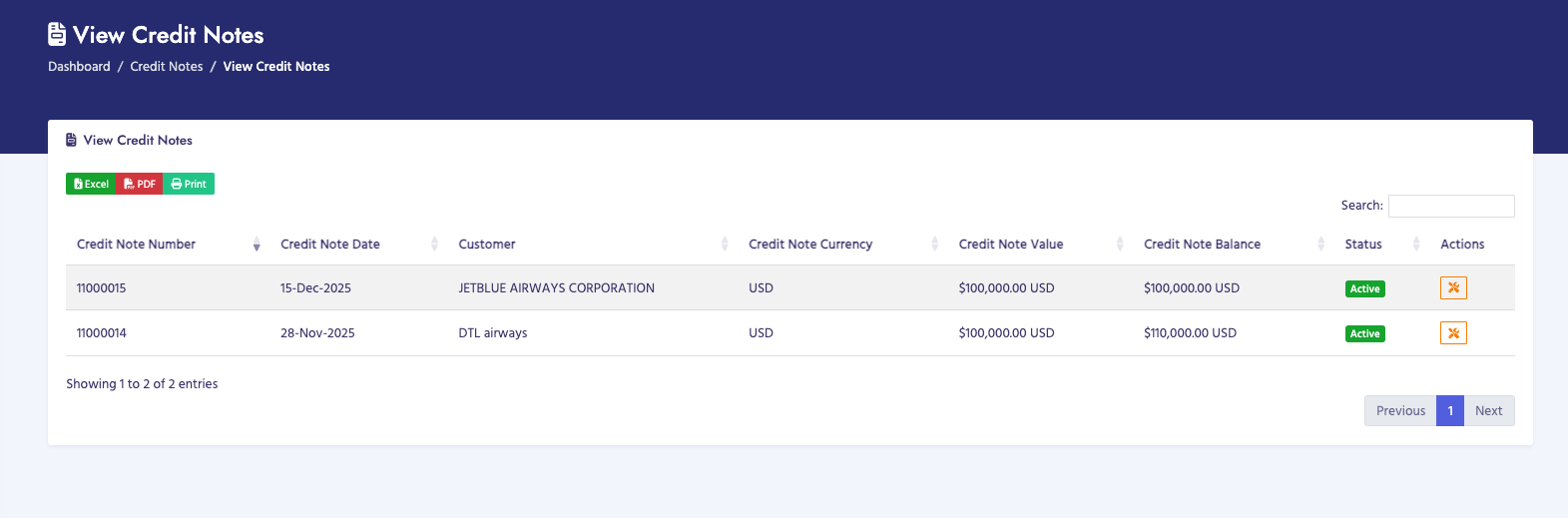
The View Credit Notes page displays all credit notes in the system. You can view credit note details, see transaction history, and check credit balances.

How to View Credit Notes

  1. Navigate to Credit Notes → View Credit Notes
  2. The page displays a table of all credit notes
  3. Use the search box to search by credit note number, customer name, or other fields
  4. Click on column headers to sort the table
  5. Use pagination controls to navigate through multiple pages
  6. Click on a credit note to view details

Credit Notes Table

The table displays the following columns:

  • Credit Note ID: Internal credit note identifier
  • Credit Note Number: Credit note number
  • Customer: Customer name
  • Credit Note Date: Date the credit note was created
  • Credit Amount: Original credit amount
  • Currency: USD or JMD
  • Available Balance: Remaining credit balance
  • Status: Credit note status (Pending, Partially Applied, Fully Applied, Refunded)
  • Actions: Buttons to view details or perform actions

Credit Note Details

When viewing credit note details, you can see:

  • Credit Note Information:
    • Credit note number and date
    • Customer name and PACID
    • Original credit amount
    • Available balance
    • Currency
    • Description
    • Status
  • Transaction History:
    • All transactions affecting this credit note
    • Transaction types: Increase, Application, Refund
    • Transaction dates and amounts
    • Related invoice numbers (for applications)

Available Actions

Depending on permissions and credit note status, you may be able to:

  • View Details: See full credit note information and transaction history
  • Apply Credit: Apply remaining balance to invoices (if balance available)
  • Refund Credit: Refund unused credit balance to customer (if applicable)

Credit Note Statuses

  • Pending: Credit note created but not yet applied
  • Partially Applied: Some credit has been applied to invoices
  • Fully Applied: All credit has been applied to invoices
  • Refunded: Credit has been refunded to the customer
Important Notes

  • All credit notes are shown regardless of status
  • Available balance shows how much credit can still be applied
  • Transaction history shows all changes to the credit note
  • Credit notes can be viewed by both full access and view-only users
  • Only full access users can apply or refund credits
View Credit Notes