View Invoices

Guide to viewing and managing invoices for AIRNAV, PASC, and Handling Agent billing types

View Invoices Overview

Overview

The View Invoices section allows you to view, search, and manage invoices that have been generated for processed billing data. You can view invoices by billing type (AIRNAV, PASC, or Handling Agent) and access detailed information about each invoice.

Invoice Viewing Features

  • Batch Summaries: View summary information for all invoices in a billing period
  • Invoice Lists: Browse and search through individual invoices
  • Invoice Details: View comprehensive details for a specific invoice
  • PDF Generation: Download or view invoice PDFs
  • Status Management: Track invoice status (temporary/permanent)

Invoice Status

Invoices can have two statuses:

  • Temporary (invoiced): Invoices that have been generated but not yet finalized. These can still be modified or regenerated.
  • Permanent: Invoices that have been finalized and locked. These cannot be modified and are archived for long-term storage.

Permissions

View Invoices access is controlled by permissions:

  • View Invoices - Air Navigation: Required to view AIRNAV invoices (Full or View-only access)
  • View Invoices - PASC: Required to view PASC invoices (Full or View-only access)
  • View Invoices - Handling Agent: Required to view Handling Agent invoices (Full or View-only access)

Note: Both full access (Y) and view-only (V) permissions allow viewing invoices. Full access may be required for certain actions like making invoices permanent.

View AIRNAV Invoices

Overview

AIRNAV invoices display air navigation service charges billed to customers. You can view batch summaries, individual invoice lists, and detailed invoice information.

How to View AIRNAV Invoices

  1. Navigate to Billing Process → View Invoices → AIRNAV Invoices
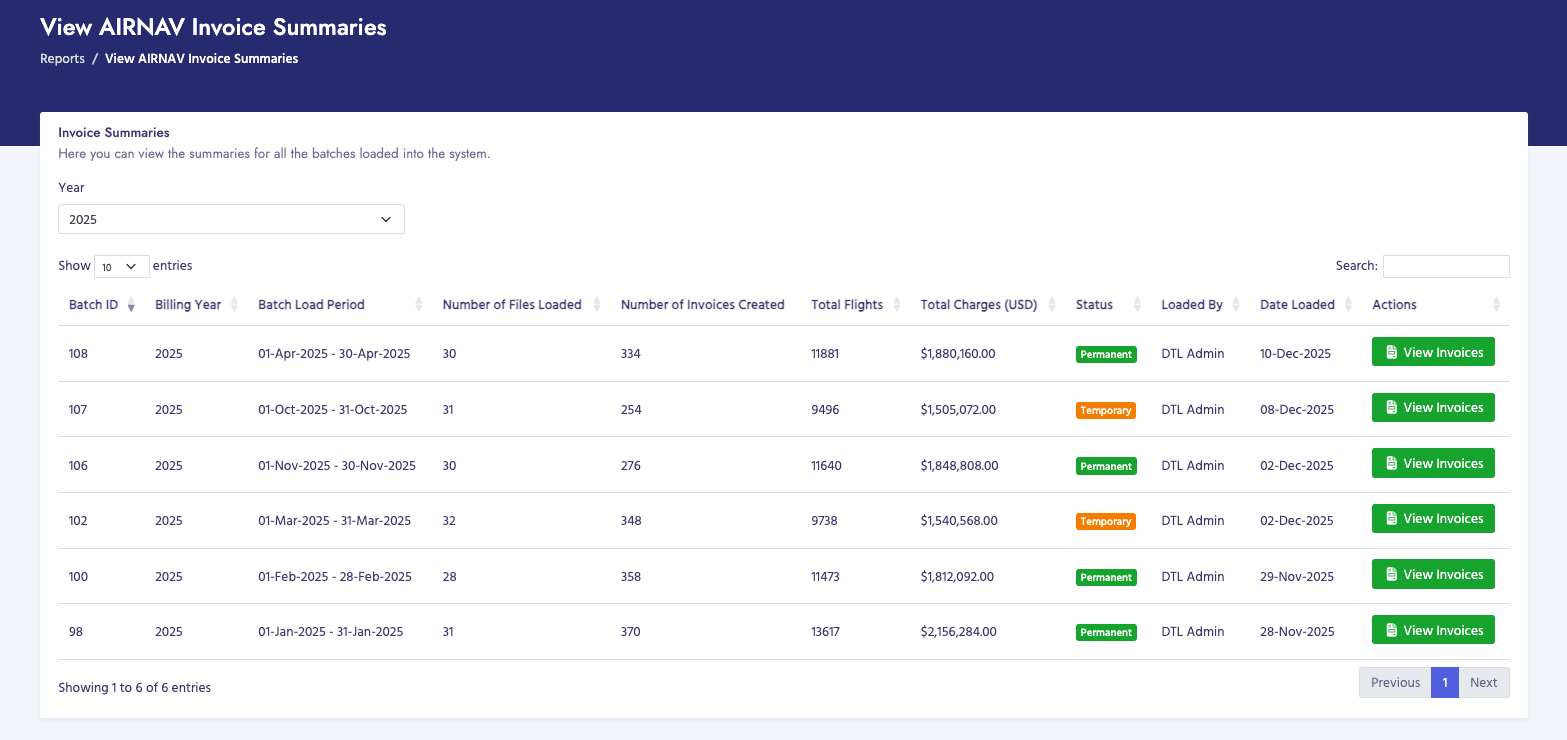
  2. You will see the View AIRNAV Invoice Summaries page
  3. Filter by Billing Year using the dropdown menu (defaults to current year)
  4. Review the table showing all processed batches with invoices
  5. Click View Invoices button for a specific batch to see individual invoices

Batch Summary Page

The batch summary page displays:

  • Batch ID: Unique identifier for the data batch
  • Billing Year: Year of the billing period
  • Batch Load Period: Start and end dates of the billing period
  • Number of Files Loaded: Total files processed in this batch
  • Number of Invoices Created: Total invoices generated for this batch
  • Total Flights: Total number of flights included in all invoices
  • Total Charges (USD): Sum of all invoice amounts
  • Status: Period status (Temporary/Invoiced or Permanent)
  • Loaded By: User who processed the data
  • Date Loaded: When the batch was processed
  • Actions: Button to view individual invoices

Invoice List Page

When you click "View Invoices" from the batch summary, you'll see a list of all invoices for that batch. The invoice list displays:

  • Invoice Number: Unique invoice identifier (or TEMP-ID if not yet finalized)
  • Customer Name: Name of the billed customer
  • Customer Reference (PACID): Customer's unique identifier
  • Invoice Date: Date the invoice was generated
  • Due Date: Payment due date based on billing terms
  • Total Amount: Invoice total in USD
  • Status: Payment status (Paid, Unpaid, Overdue, etc.)
  • Actions: Buttons to view details, download PDF, or send email

Invoice Details Page

Clicking on an invoice from the list opens the detailed invoice view. The invoice details page includes multiple tabs:

Invoice Information Tab

  • Invoice Header: Invoice number, date, billing period, customer reference
  • Customer Information: Name, billing address, contact details
  • Billing Summary: Total flights, total charges, payment terms
  • Payment Information: Bank details, wire transfer instructions

Flight Details Tab

This tab shows a detailed table of all flights included in the invoice:

  • Aircraft Identifier: Flight number or aircraft identifier
  • Aircraft Type: Type of aircraft (e.g., Boeing 737, Airbus A320)
  • Registration: Aircraft registration number
  • Flight Date: Date of the flight
  • Departure: Departure airport code
  • Destination: Destination airport code
  • Departure Time: Scheduled departure time
  • Arrival Time: Scheduled arrival time
  • Enroute Charge: Air navigation service charge for this flight
  • Communication Charge: Communication service charge (if applicable)
  • Total Charge: Total charge for this flight

Payment History Tab

Shows payment records associated with this invoice:

  • Payment dates and amounts
  • Payment methods
  • Remaining balance
  • Payment status

Messages Tab

Displays messages and communications related to this invoice:

  • Customer inquiries
  • Internal notes
  • Dispute records
  • Unread message count indicator

Actions Available

  • View PDF: Open or download the invoice as a PDF file
  • Send Email: Email the invoice to the customer
  • View Invoice Summary: Download a CSV summary of all invoices in the batch (available when period status is "invoiced")
  • Make Permanent: Finalize and lock the invoices (changes status from "invoiced" to "permanent")

Important Notes

  • Invoices with status "invoiced" can still be modified or regenerated
  • Once invoices are made "permanent", they cannot be changed
  • Invoice numbers are assigned when invoices are finalized
  • Temporary invoices show "TEMP-" prefix followed by the invoice ID
  • Use the year filter to find invoices from specific years
  • Invoice details include all flight movements that were processed for the billing period
View AIRNAV Invoice Summaries

View PASC Invoices

Overview

PASC (Passenger Service Charge) invoices display passenger service charges billed to customers. These invoices are organized by airport and show passenger movement data.

How to View PASC Invoices

  1. Navigate to Billing Process → View Invoices → PASC Invoices
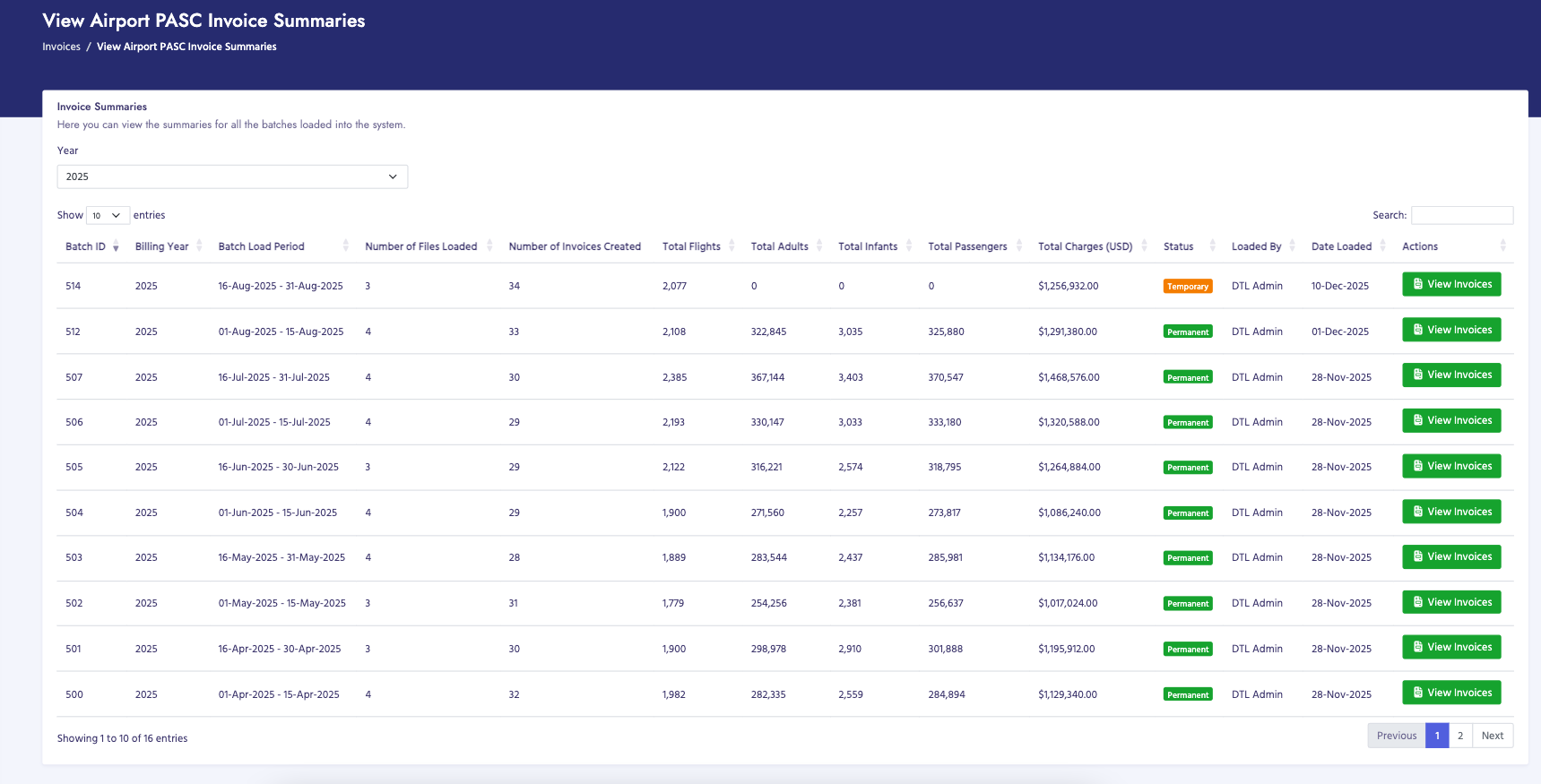
  2. You will see the View Airport PASC Invoice Summaries page
  3. Filter by Billing Year using the dropdown menu
  4. Review the table showing all processed batches with invoices
  5. Click View Invoices button for a specific batch to see individual invoices

Batch Summary Page

The batch summary page displays:

  • Batch ID: Unique identifier for the data batch
  • Billing Year: Year of the billing period
  • Batch Load Period: Start and end dates of the billing period
  • Number of Files Loaded: Total PASC data files processed
  • Number of Invoices Created: Total invoices generated
  • Total Flights: Total number of flights across all invoices
  • Total Adults: Total adult passengers
  • Total Infants: Total infant passengers
  • Total Passengers: Combined total of adults and infants
  • Total Charges (USD): Sum of all invoice amounts
  • Status: Period status (Temporary/Invoiced or Permanent)
  • Loaded By: User who processed the data
  • Date Loaded: When the batch was processed
  • Actions: Button to view individual invoices

Invoice List Page

The invoice list displays:

  • Invoice Number: Unique invoice identifier
  • Customer Name: Name of the billed customer
  • Customer Reference (PACID): Customer's unique identifier
  • Invoice Date: Date the invoice was generated
  • Due Date: Payment due date
  • Total Amount: Invoice total (may be in USD or JMD based on customer preference)
  • Status: Payment status
  • Actions: Buttons to view details, download PDF, or send email

Invoice Details Page

The invoice details page includes multiple tabs:

Invoice Information Tab

  • Invoice Header: Invoice number, date, billing period, customer reference
  • Customer Information: Name, billing address, contact details
  • Billing Summary: Total flights, total passengers, total charges
  • Payment Information: Bank details, wire transfer instructions
  • Currency: Display currency (USD or JMD) based on customer payment preference

Flight Details Tab

This tab shows flights organized by airport. For each airport section:

  • Airport Information: Airport name and IATA code
  • Summary: Total flights, total passengers (adults and infants) for this airport
  • Flight Details Table:
    • Flight Number
    • Aircraft Type
    • Direction (International/Domestic)
    • Flight Origin
    • Flight Destination
    • Flight Date
    • Arrival Time
    • Departure Time
    • Adult Passengers
    • Infant Passengers
    • Total Passengers
    • Charge Amount (in invoice currency)
  • Airport Subtotal: Total charges for this airport

Note: PASC invoices group flights by airport, so you'll see separate sections for each airport the customer operated flights to/from during the billing period.

Payment History Tab

Shows payment records for this invoice

Messages Tab

Displays messages and communications related to this invoice

PASC Invoice Characteristics

  • Invoices are grouped by airport for better organization
  • Passenger counts are broken down by adults and infants
  • Charges may be displayed in USD or JMD based on customer payment currency preference
  • Exchange rates are applied automatically when displaying in local currency
  • Each airport section shows a subtotal for that airport's charges

Actions Available

  • View PDF: Open or download the invoice as a PDF
  • Send Email: Email the invoice to the customer
  • View Invoice Summary: Download CSV summary (when period status is "invoiced")
  • Make Permanent: Finalize and lock the invoices

Important Notes

  • PASC invoices show passenger movement data, not just flight movements
  • Infant passengers are typically charged at a different rate than adults
  • Currency conversion is based on the exchange rate at the time of invoice generation
  • Multiple airports may appear on a single invoice if the customer operated flights to/from multiple airports
View PASC Invoice Summaries

View Handling Agent Invoices

Overview

Handling Agent invoices display ground handling service charges billed to customers. These invoices show services provided by handling agents at airports.

How to View Handling Agent Invoices

  1. Navigate to Billing Process → View Invoices → Handling Agent Invoices
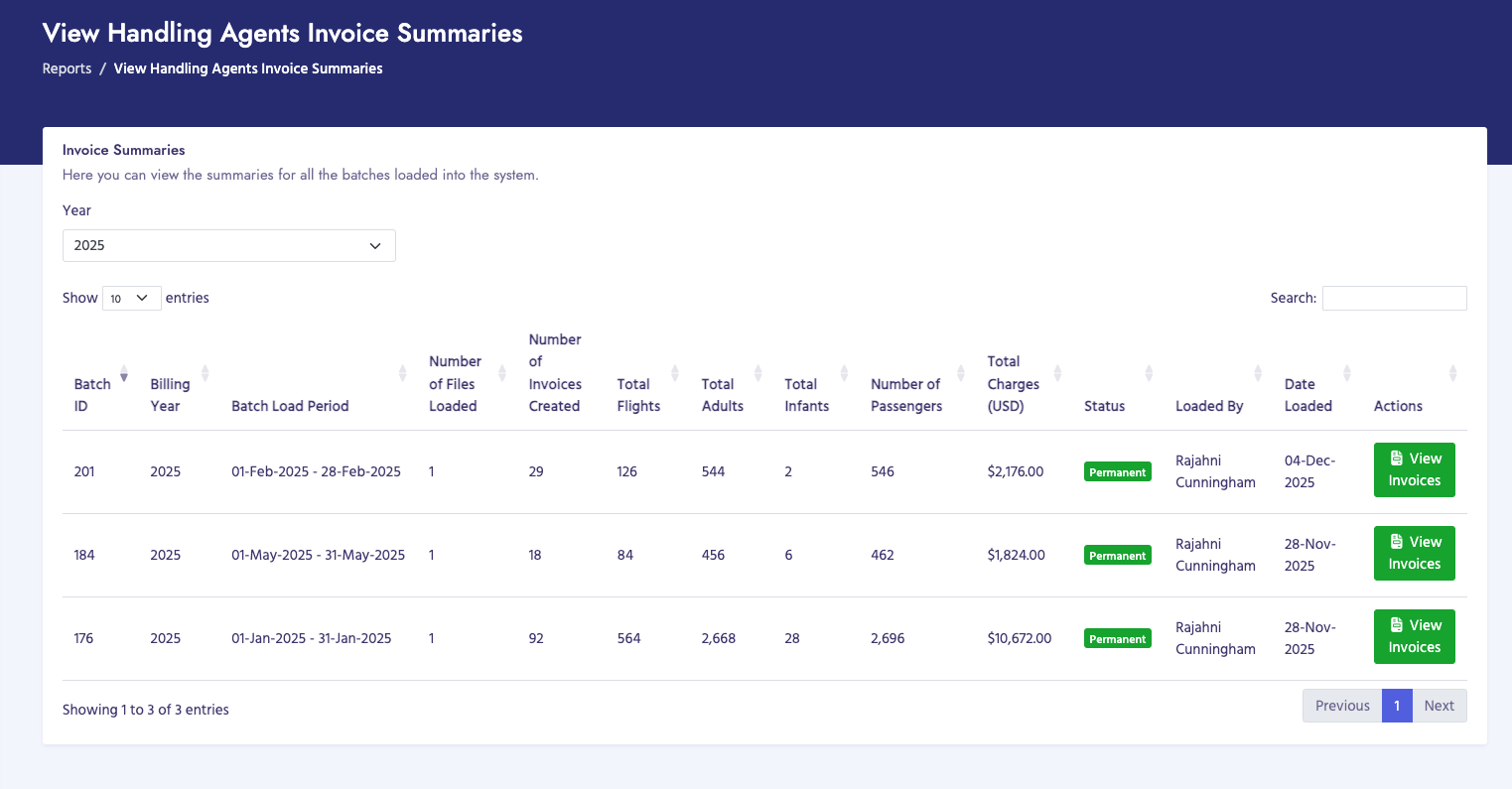
  2. You will see the View Handling Agent Invoice Summaries page
  3. Filter by Billing Year using the dropdown menu
  4. Review the table showing all processed batches with invoices
  5. Click View Invoices button for a specific batch to see individual invoices

Batch Summary Page

The batch summary page displays:

  • Batch ID: Unique identifier for the data batch
  • Billing Year: Year of the billing period
  • Batch Load Period: Start and end dates of the billing period
  • Number of Files Loaded: Total handling agent data files processed
  • Number of Invoices Created: Total invoices generated
  • Total Flights: Total number of flights across all invoices
  • Total Adults: Total adult passengers
  • Total Infants: Total infant passengers
  • Number of Passengers: Combined total passengers
  • Total Charges (USD): Sum of all invoice amounts
  • Status: Period status (Temporary/Invoiced or Permanent)
  • Loaded By: User who processed the data
  • Date Loaded: When the batch was processed
  • Actions: Button to view individual invoices

Invoice List Page

The invoice list displays:

  • Invoice Number: Unique invoice identifier
  • Customer Name: Name of the billed customer
  • Handling Agent: Name of the handling agent who provided services
  • Customer Reference (PACID): Customer's unique identifier
  • Invoice Date: Date the invoice was generated
  • Due Date: Payment due date
  • Total Amount: Invoice total in USD
  • Status: Payment status
  • Actions: Buttons to view details, download PDF, or send email

Invoice Details Page

The invoice details page includes multiple tabs:

Invoice Information Tab

  • Invoice Header: Invoice number, date, billing period, customer reference
  • Customer Information: Name, billing address, contact details
  • Handling Agent Information: Agent name, address, contact details
  • Billing Summary: Total flights, total passengers, total charges
  • Payment Information: Bank details, wire transfer instructions

Flight Details Tab

This tab shows a detailed table of all flights with handling services:

  • Flight Number: Flight identifier
  • Equipment Type: Type of aircraft
  • Direction: International or Domestic
  • Flight Origin: Origin airport code
  • Flight Destination: Destination airport code
  • Flight Date: Date of the flight
  • Arrival Time: Scheduled arrival time
  • Departure Time: Scheduled departure time
  • Adult Count: Number of adult passengers
  • Children Count: Number of child passengers (if applicable)
  • Infant Count: Number of infant passengers
  • Total Passengers: Combined passenger count
  • Service Charge: Ground handling service charge for this flight

Payment History Tab

Shows payment records for this invoice

Messages Tab

Displays messages and communications related to this invoice

Handling Agent Invoice Characteristics

  • Invoices are associated with a specific handling agent
  • Show ground handling services provided (baggage, fueling, catering, etc.)
  • Passenger counts may include adults, children, and infants
  • Charges are based on services provided by the handling agent
  • Each invoice shows the handling agent's name and contact information

Actions Available

  • View PDF: Open or download the invoice as a PDF
  • Send Email: Email the invoice to the customer
  • View Invoice Summary: Download CSV summary (when period status is "invoiced")
  • Make Permanent: Finalize and lock the invoices

Important Notes

  • Handling Agent invoices are specific to the handling agent who provided services
  • Multiple handling agents may have separate invoices for the same customer in the same period
  • Passenger counts help determine service charges
  • Services are typically charged per flight or per passenger, depending on the service type
  • Always verify the handling agent information is correct before finalizing invoices
View Handling Agent Invoice Summaries