Customer Management

Guide to managing customers, aircraft, and customer-related data

Customer Management Overview

Overview

The Customer Management section allows you to manage customer information, view customer records, add new customers, manage aircraft inventory, and handle unknown customers and aircraft that appear in billing data.

Customer Management Features

  • Current Customers: View and manage existing customer records
  • Add Customer: Create new customer accounts
  • Unknown Customers: Review and assign customers that appear in data but aren't in the system
  • Unknown Aircraft: Review aircraft that appear in data but aren't in the inventory
  • Aircraft Inventory: View and manage aircraft records
  • Add Aircraft: Add new aircraft to the inventory

Permissions

Customer Management access is controlled by permissions:

  • Customer Management (Full Access - Y): Can view, add, edit, and manage all customer data
  • Customer Management (View-Only - V): Can only view customer information
Current Customers

Overview

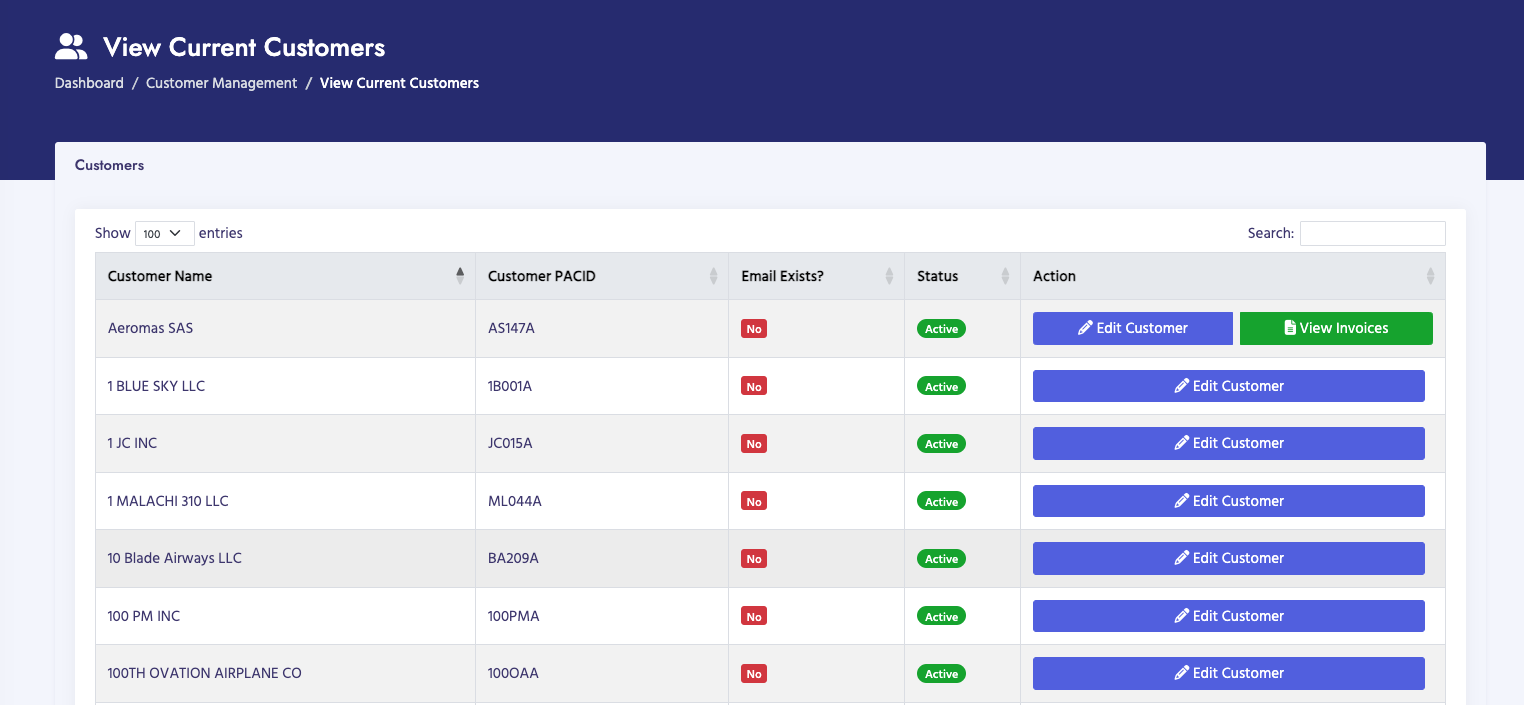
The Current Customers page displays all customers in the system. You can view customer details, search for customers, and manage customer records.

How to View Customers

  1. Navigate to Customer Hub → Customer Management → Current Customers
  2. The page displays a table of all customers
  3. Use the search box to search by customer name or PACID
  4. Click on column headers to sort
  5. Use pagination to navigate through results

Customer Table

The table displays:

  • Customer Name: Customer's business name
  • Customer PACID: Customer's unique identifier(s)
  • Email Exists?: Whether customer has email contact information
  • Status: Active or Inactive
  • Actions: Buttons to view/edit customer details

Customer Actions

For each customer, you can:

  • View Details: See full customer information
  • Edit Customer: Modify customer information (full access only)
  • View Invoices: See all invoices for this customer
Current Customers

Add Customer

Overview

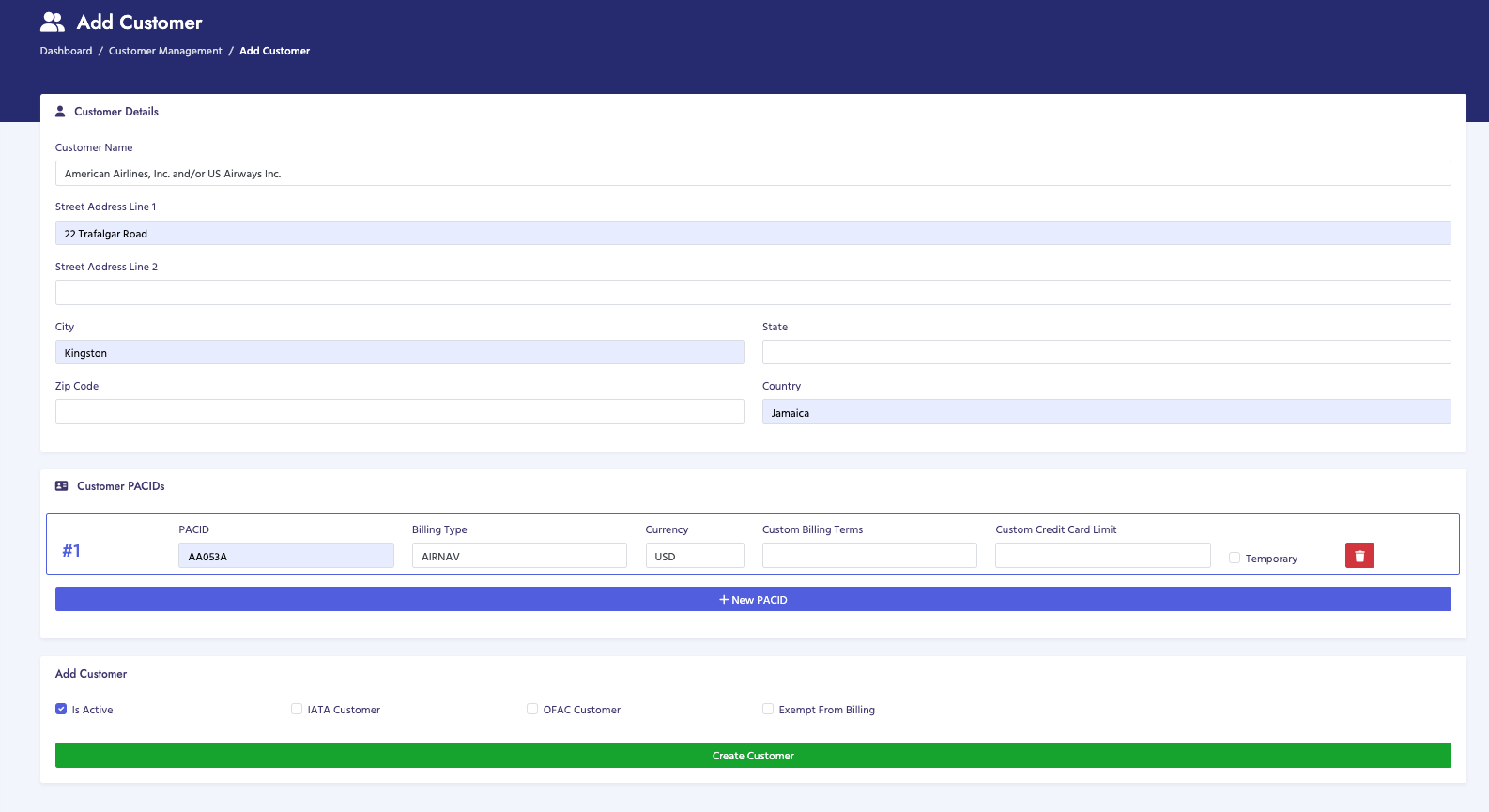
The Add Customer page allows you to create a new customer account in the system. You can enter customer information, addresses, identifiers, and preferences.

How to Add a Customer

  1. Navigate to Customer Hub → Customer Management → Add Customer
  2. Fill in customer information:
    • Customer Name: Business or legal name (required)
    • Street Address: Address line 1 and 2
    • City, State, Zip Code: Location information
    • Country: Customer's country
  3. Add customer identifiers:
    • Customer PACID(s): Unique identifier(s) for the customer
    • IATA Code(s): IATA identifier(s) if applicable
    • ICAO Code(s): ICAO identifier(s) if applicable
  4. Set customer flags:
    • Active Status: Whether customer is active
    • IATA Customer: If customer is IATA member
    • OFAC Customer: If customer is on OFAC list
    • Exempt Customer: If customer is exempt from certain charges
  5. Click Add Customer to save

Customer Information Fields

  • Customer Name (Required): Must be unique in the system
  • Address Information: Physical address details
  • Customer PACID: Can add multiple PACIDs
  • IATA/ICAO Codes: Can add up to 3 of each
  • Customer Flags: Various status and type indicators

Validation Rules

  • Customer name must be unique
  • IATA codes must be unique if provided
  • ICAO codes must be unique if provided
  • PACIDs must be unique if provided

Important Notes

  • Customer name is required and must be unique
  • At least one identifier (PACID, IATA, or ICAO) is recommended
  • Customer flags affect how the customer is processed in billing
  • New customers are set to active by default
Add Customer

Unknown Customers

Overview

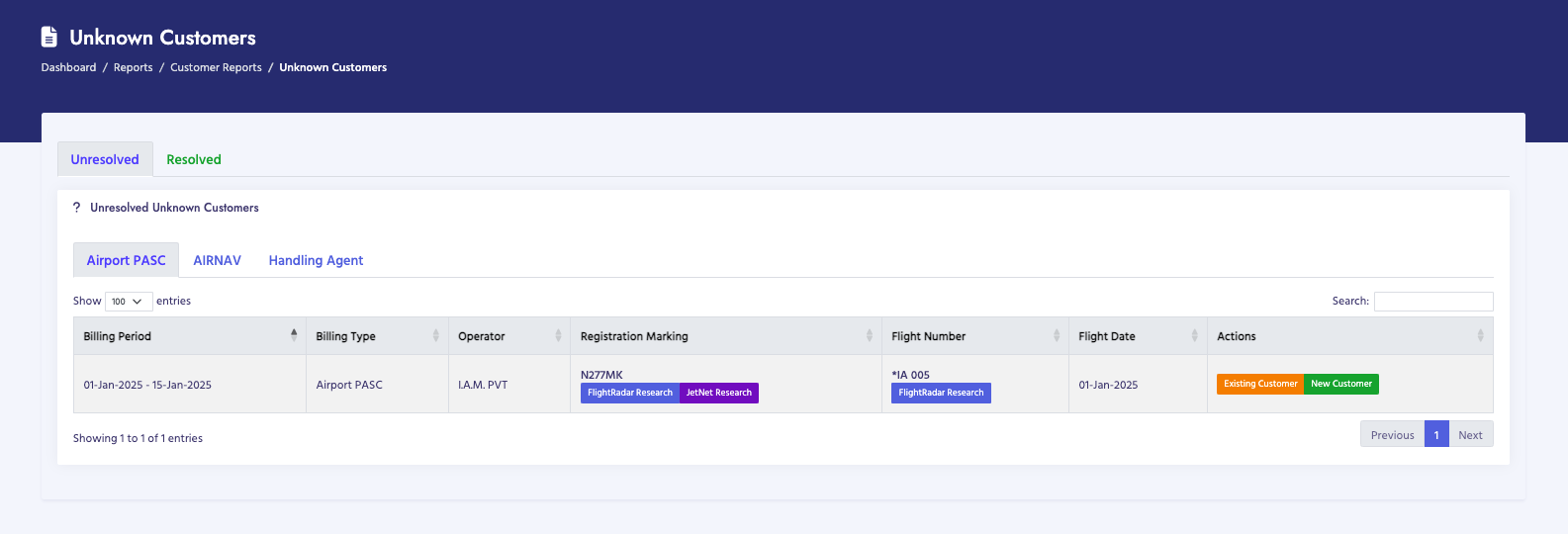
The Unknown Customers page shows customers that appear in billing data files but don't exist in the customer database. You can review these and assign them to existing customers or create new customer records.

How to Handle Unknown Customers

  1. Navigate to Customer Hub → Customer Management → Unknown Customers
  2. Review the list of unknown customers
  3. For each unknown customer:
    • Assign to existing customer if it's a match
    • Create new customer record if it's a new customer

Unknown Customer Information

For each unknown customer, you can see:

  • Customer identifier (PACID, IATA, or ICAO) from data files
  • Number of occurrences in data files
  • Billing periods where the customer appears

Important Notes

  • Unknown customers prevent proper invoice generation
  • They should be resolved before finalizing billing periods
  • You can assign multiple unknown customers to one existing customer
  • Creating new customers from unknown customers helps maintain data quality
Unknown Customers

Unknown Aircraft

Overview

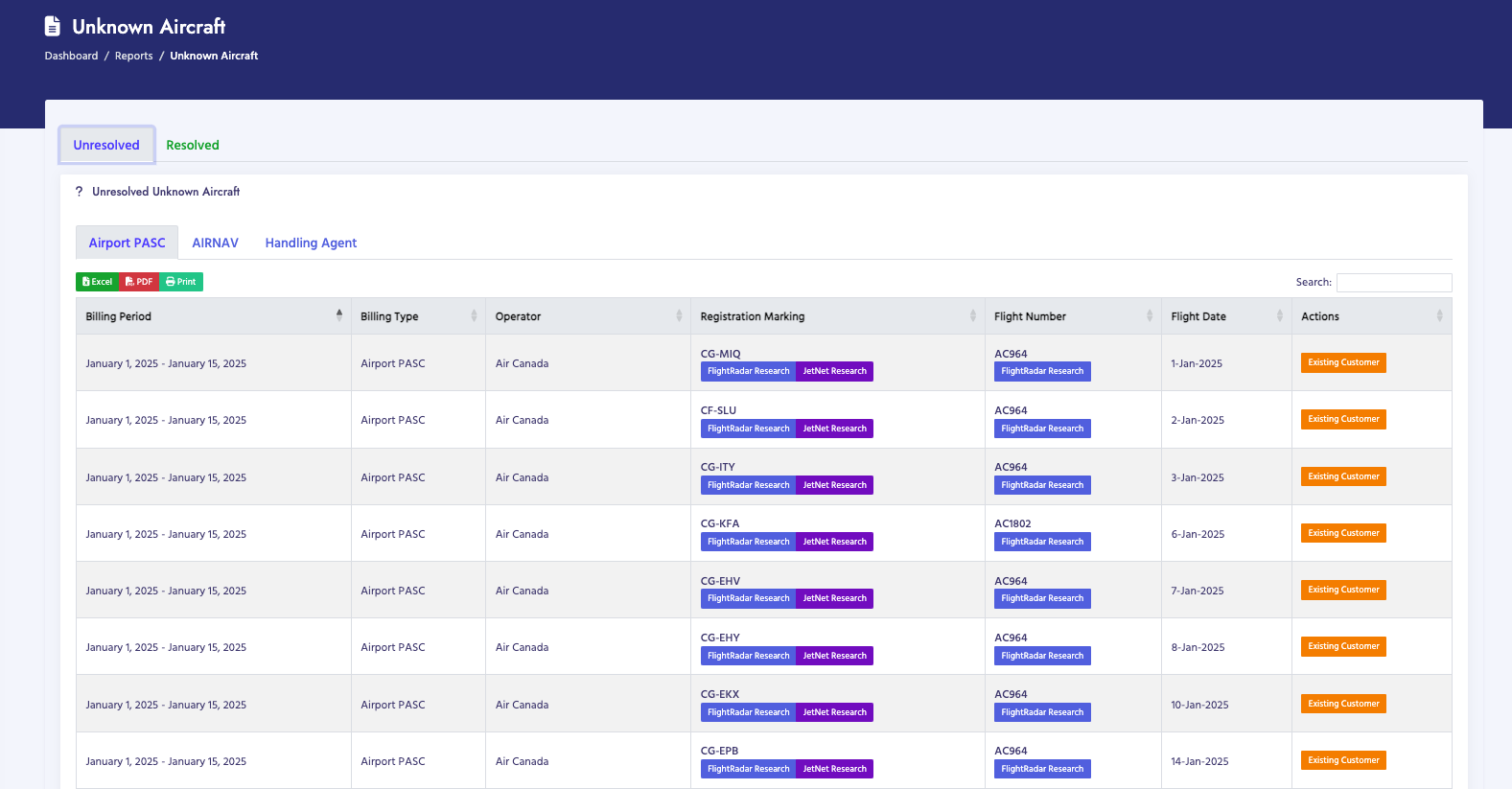
The Unknown Aircraft page shows aircraft that appear in billing data but aren't in the aircraft inventory. You can review these and add them to the inventory.

How to Handle Unknown Aircraft

  1. Navigate to Customer Hub → Customer Management → Unknown Aircraft
  2. Review the list of unknown aircraft
  3. Add aircraft to inventory as needed

Important Notes

  • Unknown aircraft may affect billing accuracy
  • Adding aircraft to inventory improves data quality
  • Aircraft information comes from flight data files
Unknown Aircraft

Aircraft Inventory

Overview

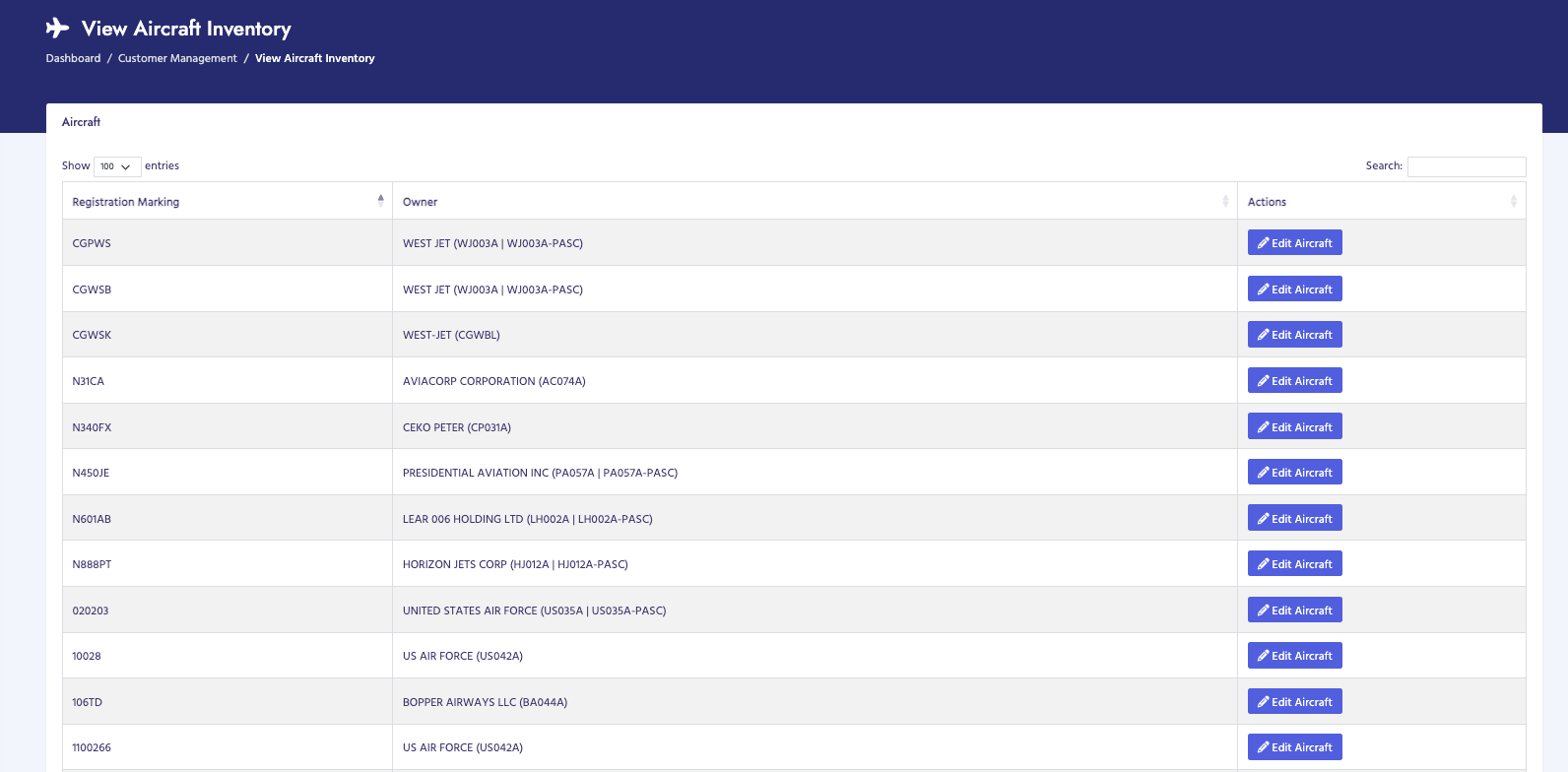
The Aircraft Inventory page displays all aircraft in the system. You can view aircraft details, search for aircraft, and manage aircraft records.

How to View Aircraft

  1. Navigate to Customer Hub → Customer Management → View Aircraft Inventory
  2. The page displays a table of all aircraft
  3. Use search to find specific aircraft
  4. Click column headers to sort

Aircraft Information

For each aircraft, you can see:

  • Aircraft registration number
  • Aircraft type
  • Owner information
  • Operator information
  • Status
Aircraft Inventory

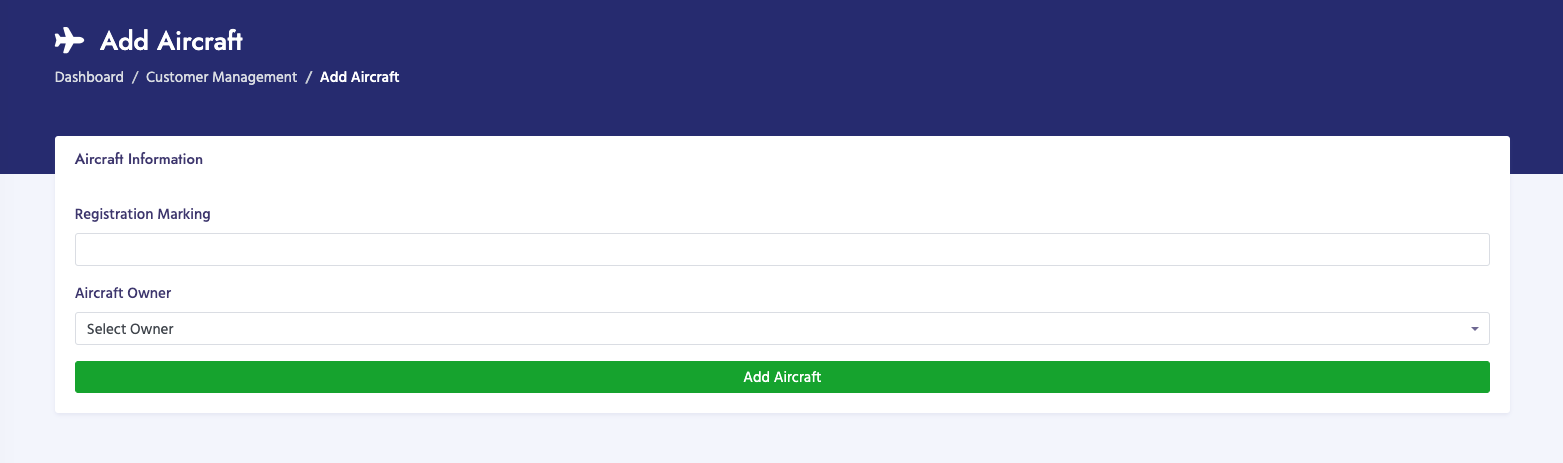
Add Aircraft

Overview

The Add Aircraft page allows you to add new aircraft to the inventory. This helps ensure all aircraft in billing data are properly tracked.

How to Add Aircraft

  1. Navigate to Customer Hub → Customer Management → Add Aircraft
  2. Enter aircraft information:
    • Aircraft registration number
    • Aircraft type
    • Owner information
    • Operator information
  3. Click Add Aircraft to save

Important Notes

  • Aircraft registration must be unique
  • Adding aircraft improves billing accuracy
  • Aircraft can be linked to customers
Add Aircraft