Payments

Guide to managing bank transfer payments and viewing payment records

Payments Overview

Overview

The Payments section allows you to manage bank transfer payments received from customers. This includes recording new payments, reviewing pending payments, confirming payments, and viewing all completed payment records.

Payment Types

  • Bank Transfer Payments: Wire transfers and bank payments from customers
  • Credit Card Payments: Payments processed through credit card (handled separately)

Payment Workflow

  1. Receive Bank Payment: Record a new bank transfer payment received from a customer
  2. Pending Bank Payments: Review payments that have been submitted but not yet confirmed
  3. Confirm Bank Payments: Verify and confirm pending payments after bank reconciliation
  4. View Final Payments: View all completed and confirmed payments

Permissions

Payment access is controlled by permissions:

  • Payments (Full Access - Y): Can receive, confirm, and view all payments
  • Payments (View-Only - V): Can only view final payments

Note: Full access is required to receive, confirm, or manage pending payments. View-only access allows viewing of completed payments only.

Payment Statuses

  • Pending: Payment has been submitted but not yet confirmed
  • Confirmed: Payment has been verified and confirmed
  • Paid: Payment has been fully processed and applied to invoices
  • Completed: Payment process is complete
Receive Bank Payment

Overview

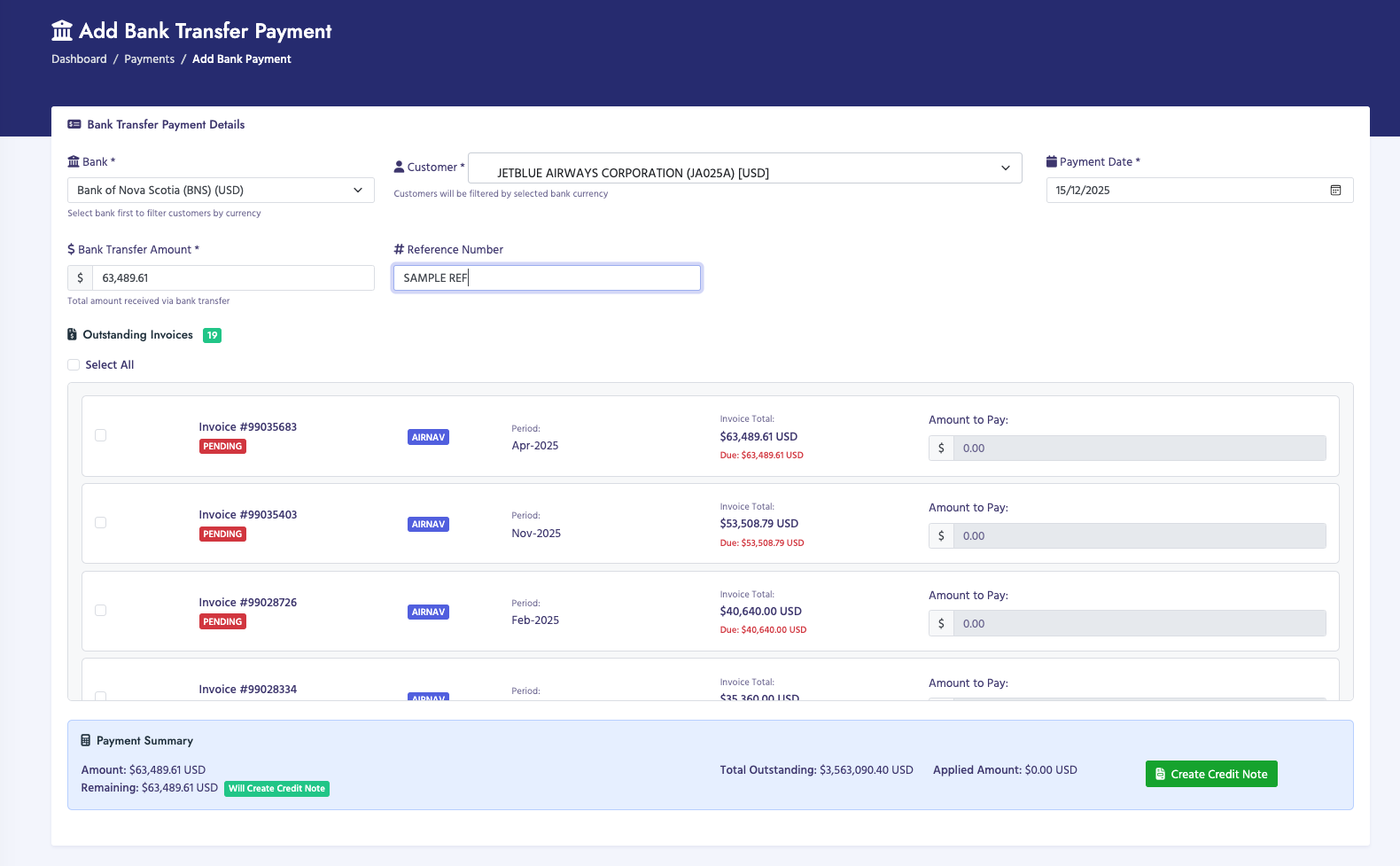
The Receive Bank Payment page allows you to record a new bank transfer payment received from a customer. You can select multiple invoices to apply the payment to and specify the payment amount for each invoice.

How to Receive a Bank Payment

  1. Navigate to Payments → Receive Bank Payment
  2. Select the Bank from the dropdown (required):
    • Banks are filtered by currency (USD or JMD)
    • Selecting a bank enables the customer dropdown
  3. Select the Customer from the dropdown (required):
    • Customers are filtered by the selected bank's currency
    • Only customers matching the bank currency are shown
  4. Enter the Payment Date (defaults to today)
  5. Enter the Bank Transfer Amount (total amount received)
  6. Optionally enter a Reference Number (bank reference, transaction ID, etc.)
  7. Click Load Invoices to see available invoices for this customer
  8. Select invoices to apply the payment to:
    • Check the checkbox next to each invoice you want to pay
    • Enter the payment amount for each selected invoice
    • The total applied amount is calculated automatically
  9. Review the payment summary showing:
    • Total bank transfer amount
    • Total amount applied to invoices
    • Remaining amount (if any)
  10. Click Submit Payment to record the payment

Payment Fields

  • Bank (Required):
    • Select from active banks in the system
    • Banks are shown with their currency (USD or JMD)
    • Must be selected before customer selection
  • Customer (Required):
    • Filtered by selected bank's currency
    • Only shows customers with matching payment currency
    • Uses Select2 for enhanced search
  • Payment Date (Required):
    • Date the payment was received
    • Defaults to current date
  • Bank Transfer Amount (Required):
    • Total amount received via bank transfer
    • Must be greater than 0
    • Currency symbol matches selected bank
  • Reference Number (Optional):
    • Bank reference number, transaction ID, or other identifier
    • Helps track and reconcile payments

Invoice Selection

After loading invoices, you can:

  • View all unpaid or partially paid invoices for the customer
  • See invoice details:
    • Invoice number
    • Invoice date
    • Total amount
    • Amount already paid
    • Outstanding balance
  • Select multiple invoices by checking their checkboxes
  • Enter payment amounts for each selected invoice
  • Payment amounts cannot exceed the outstanding balance

Payment Amount Validation

  • The total applied amount cannot exceed the bank transfer amount
  • Each invoice payment cannot exceed the invoice's outstanding balance
  • You can apply less than the full bank transfer amount (remaining amount stays as credit)

Payment Processing

When you submit a payment:

  1. A payment master record is created in the database
  2. Payment detail records are created for each selected invoice
  3. Invoice payment statuses are updated
  4. Paid amounts are recorded for each invoice
  5. Payment status is set to "Pending" until confirmed
  6. An audit log entry is created

Important Notes

  • You must select a bank before selecting a customer
  • Customers are filtered by the bank's currency
  • Only unpaid or partially paid invoices are shown
  • You can apply the payment to multiple invoices in one transaction
  • Payment amounts are validated before submission
  • Payments start with "Pending" status and must be confirmed
  • Reference numbers help track payments during bank reconciliation
Receive Bank Payment

Pending Bank Payments

Overview

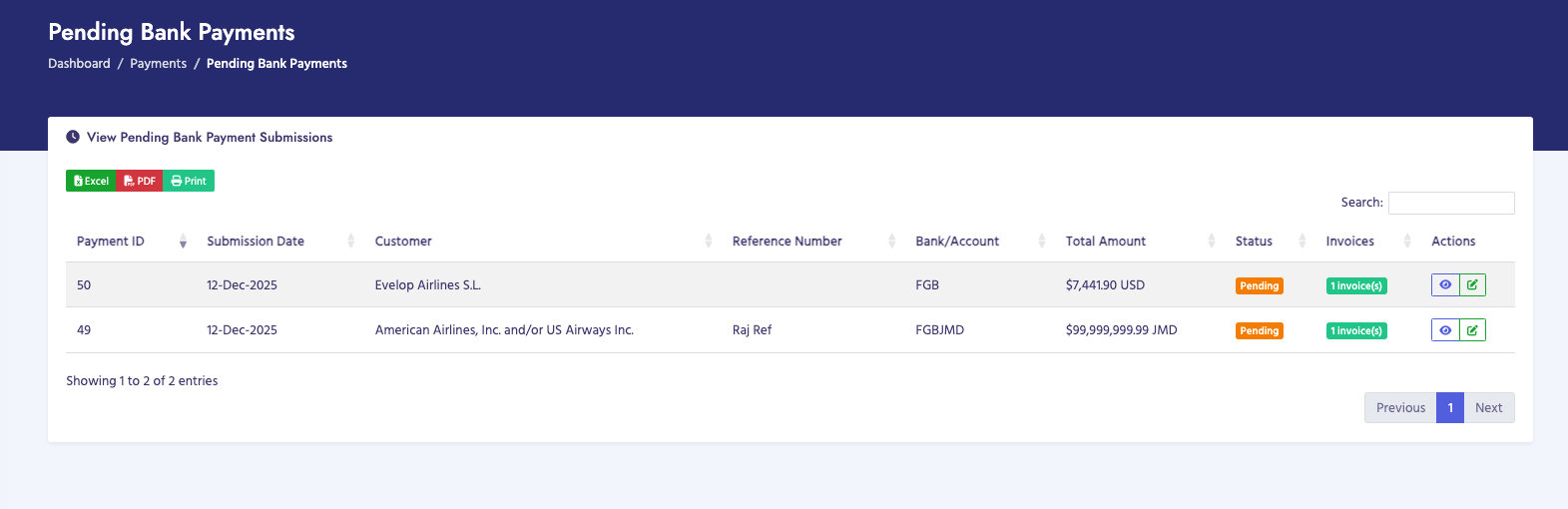
The Pending Bank Payments page displays all bank transfer payments that have been submitted but not yet confirmed. This allows you to review payments before confirming them during bank reconciliation.

How to View Pending Payments

  1. Navigate to Payments → Pending Bank Payments
  2. The page displays a table of all pending payments
  3. Use the search box to search by customer name, reference number, or payment ID
  4. Click on column headers to sort the table
  5. Use pagination controls to navigate through multiple pages

Pending Payments Table

The table displays the following columns:

  • Payment ID: Unique identifier for the payment
  • Submission Date: Date the payment was submitted
  • Customer: Name of the customer who made the payment
  • Reference Number: Bank reference or transaction ID
  • Bank/Account: Bank name and account information
  • Total Amount: Total payment amount
  • Status: Current payment status (Pending)
  • Invoices: Number of invoices the payment applies to
  • Actions: Buttons to view details or confirm the payment

Available Actions

For each pending payment, you can:

  • View Details:
    • Opens a modal showing full payment information
    • Displays customer details, bank information, and invoice list
    • Shows payment amounts applied to each invoice
  • Confirm Payment:
    • Moves the payment from "Pending" to "Confirmed" status
    • Finalizes the payment application to invoices
    • Updates invoice payment statuses

Payment Details Modal

When viewing payment details, you can see:

  • Payment master information:
    • Payment ID and submission date
    • Customer name and PACID
    • Bank name and account
    • Reference number
    • Total payment amount
    • Currency
  • Invoice details:
    • Invoice numbers
    • Invoice dates
    • Invoice amounts
    • Amounts applied to each invoice

Confirming Payments

To confirm a pending payment:

  1. Review the payment details to ensure accuracy
  2. Verify the payment has been received in the bank account
  3. Click the Confirm Payment button
  4. The payment status changes to "Confirmed"
  5. Invoice payment statuses are updated
  6. The payment moves from pending to final payments

Important Notes

  • Pending payments are payments that have been recorded but not yet verified
  • Payments should be confirmed after bank reconciliation
  • Once confirmed, payments cannot be easily reversed
  • You can view payment details before confirming
  • Only payments with "Pending" status appear on this page
  • Confirmed payments appear in "View Final Payments"
Pending Bank Payments

Confirm Bank Payments

Overview

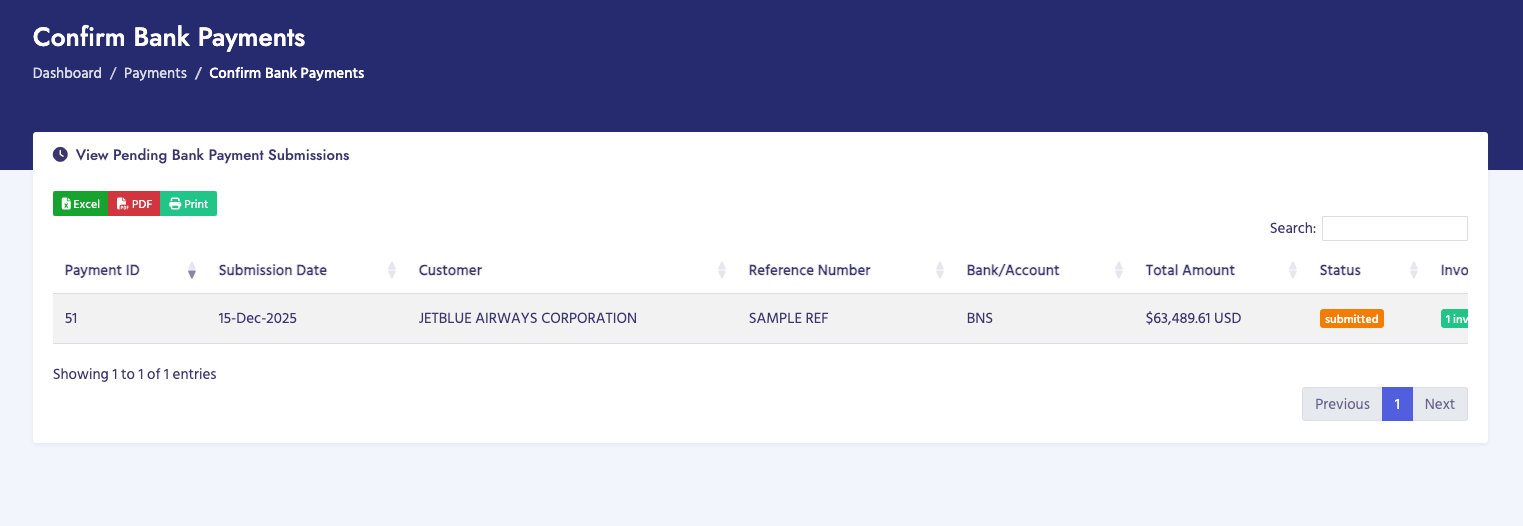
The Confirm Bank Payments page allows you to verify and confirm pending bank transfer payments. This is typically done after bank reconciliation to ensure payments have been received.

How to Confirm Payments

  1. Navigate to Payments → Confirm Bank Payments
  2. Review the list of pending payments
  3. Verify each payment against bank statements
  4. Select payments to confirm
  5. Click Confirm Selected Payments to batch confirm multiple payments
  6. Or click Confirm on individual payments

Confirmation Process

When confirming a payment:

  1. The payment status changes from "Pending" to "Confirmed"
  2. Invoice payment statuses are updated
  3. Paid amounts are finalized on invoices
  4. Payment records are marked as completed
  5. An audit log entry is created

Batch Confirmation

You can confirm multiple payments at once:

  • Select multiple payments using checkboxes
  • Click "Confirm Selected Payments"
  • All selected payments are confirmed in one operation
  • This is useful for bulk reconciliation

Important Notes

  • Only confirm payments that have been verified in bank statements
  • Once confirmed, payments cannot be easily reversed
  • Confirmed payments appear in "View Final Payments"
  • Payment confirmation finalizes invoice payment statuses
  • Always verify payment details before confirming
Confirm Bank Payments

View Final Payments

Overview

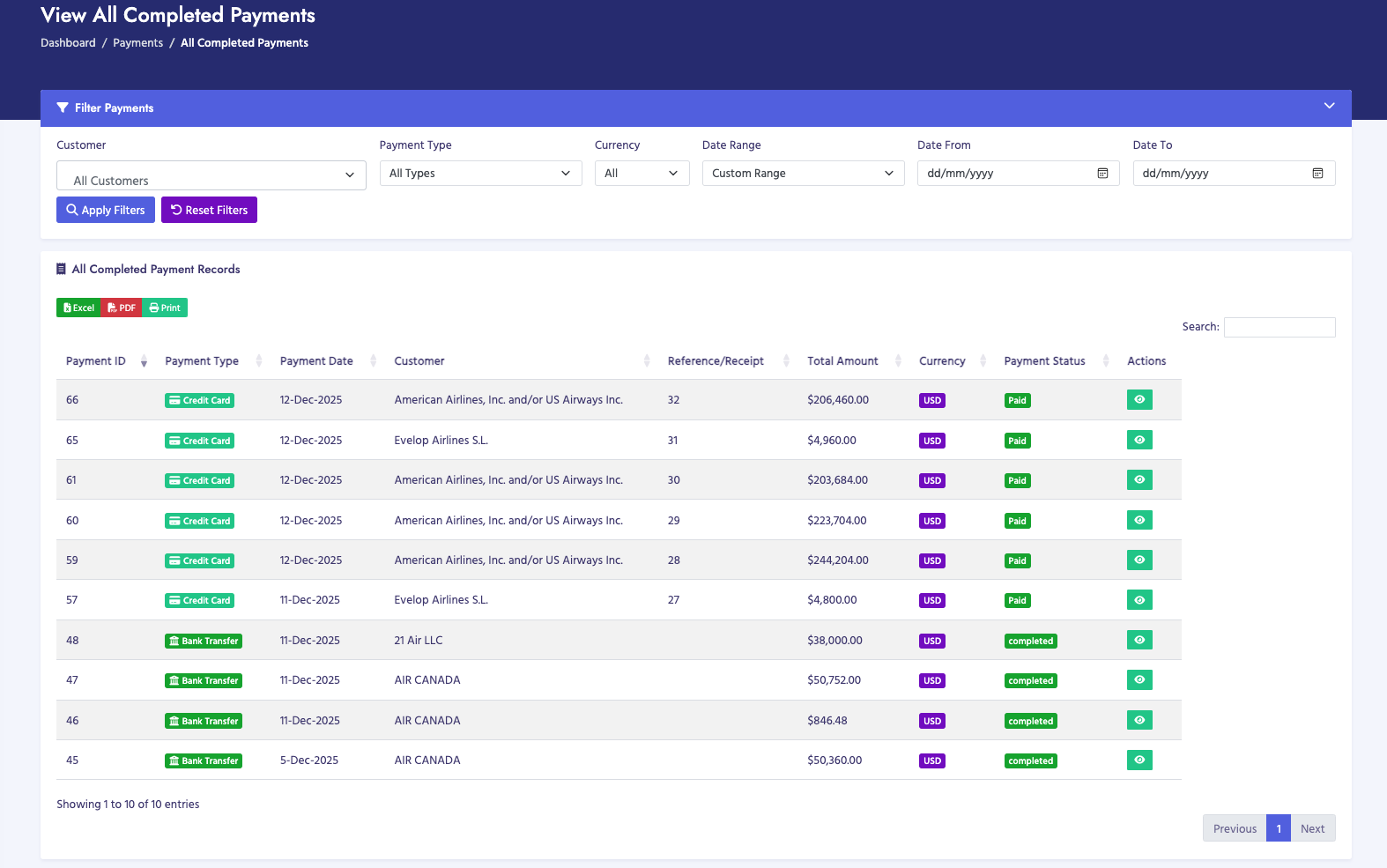
The View Final Payments page displays all completed and confirmed payments. This includes both bank transfer payments and credit card payments that have been fully processed.

How to View Final Payments

  1. Navigate to Payments → View Final Payments
  2. The page displays a filter section (collapsible)
  3. Apply filters as needed:
    • Customer: Filter by specific customer
    • Payment Type: Filter by Credit Card or Wire Transfer
    • Currency: Filter by USD or JMD
    • Date Range: Filter by date range (Today, Yesterday, This Week, This Month, This Quarter, This Year, or Custom Range)
  4. The table updates automatically based on filters
  5. Use search to find specific payments
  6. Click column headers to sort
  7. Use pagination to navigate through results

Filter Options

  • Customer Filter:
    • Select a specific customer to view only their payments
    • Uses Select2 for enhanced search
    • Shows all customers if not filtered
  • Payment Type Filter:
    • All Types (default)
    • Credit Card
    • Wire Transfer
  • Currency Filter:
    • All (default)
    • USD
    • JMD
  • Date Range Options:
    • Custom Range: Specify your own start and end dates
    • Today: Payments from today only
    • Yesterday: Payments from yesterday only
    • This Week: Monday to Sunday of current week
    • This Month: 1st to last day of current month
    • This Quarter: Start to end of current quarter
    • This Year: January 1st to December 31st

Payments Table

The table displays the following information:

  • Payment ID: Unique payment identifier
  • Payment Date: Date the payment was received
  • Customer: Customer name
  • Invoice Number: Invoice(s) the payment applies to
  • Payment Type: Credit Card or Wire Transfer
  • Payment Amount: Amount paid
  • Currency: USD or JMD
  • Status: Payment status (Paid, Completed)

Export Functionality

The page may include export options:

  • Export filtered results to CSV
  • Export to Excel
  • Print payment reports

Important Notes

  • Only payments with "Paid" or "Completed" status are shown
  • Filters can be combined for precise searches
  • Date ranges are inclusive (includes both start and end dates)
  • Payments are sorted by payment date (newest first) by default
  • You can search across all visible columns
  • Both view-only and full access users can view final payments
View Final Payments